
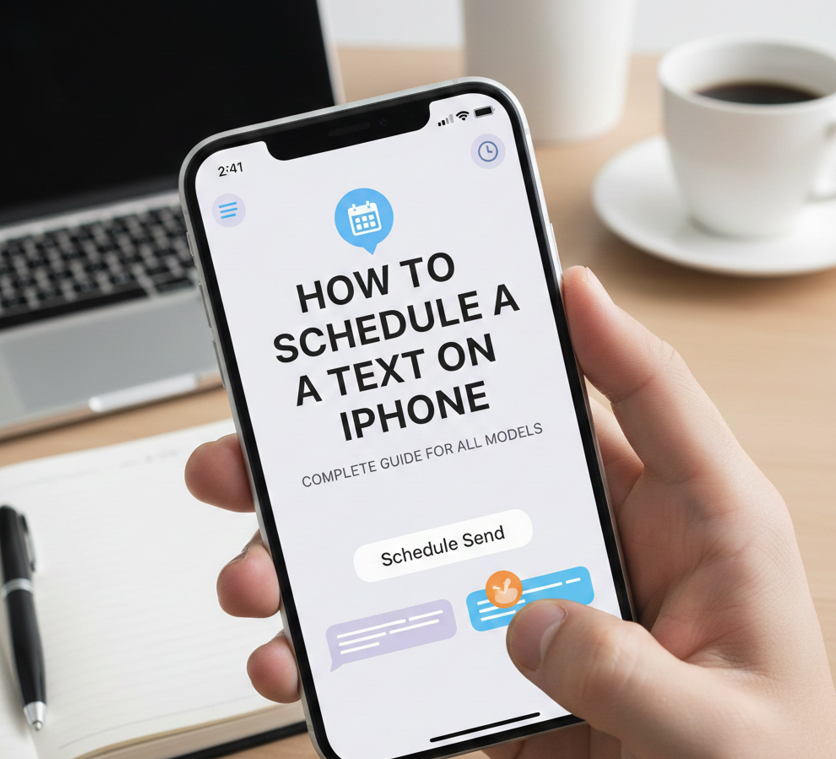
Scheduling texts on an iPhone allows users to send messages at a precise time, improving productivity and ensuring timely communication. Whether you want to send birthday wishes, reminders, or business messages, knowing how to schedule a text on iPhone can save time and prevent missed opportunities.
Apple’s iOS offers native tools, such as the Shortcuts app, to automate scheduled messages. Additionally, third-party apps provide flexible scheduling for iMessage and SMS. This guide covers all methods, from iPhone 11 to iPhone 16, including scheduling messages to Android devices, ensuring users across models can automate their messaging effectively.
How to Schedule a Text on iPhone 16
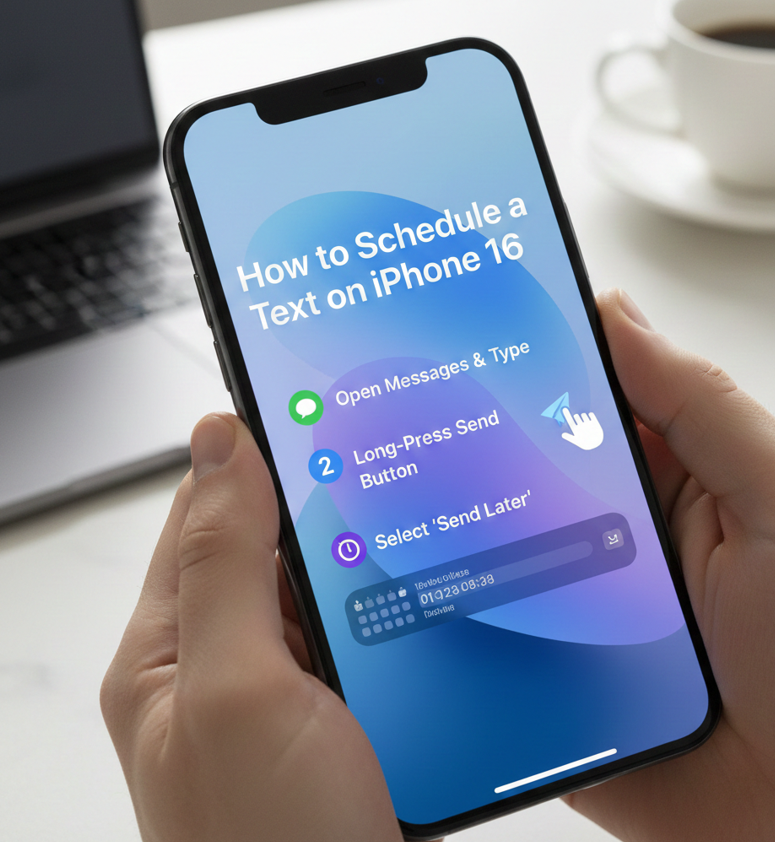
iPhone 16 users enjoy the latest iOS updates that enhance automation and ease of scheduling texts. Using built-in apps and Shortcuts, scheduling texts becomes faster, reliable, and fully integrated with iMessage.
• Using the Shortcuts app
Open the Shortcuts app, create a new automation, and select “Send Message.” This native method integrates directly with iMessage, allowing scheduled delivery without additional apps.
• Setting the date and time
Specify the exact time and day for sending your text. The system ensures the message is dispatched precisely, even if the phone is locked or on Do Not Disturb mode.
• Customizing recipients
You can send scheduled messages to one or multiple contacts. Group scheduling saves time for recurring reminders or announcements.
• Adding message content
Type your message clearly, including emojis or links if necessary. Ensure the text is final because the automation sends it automatically at the scheduled time.
• Testing before final automation
Run a test with your own number to confirm the automation works. Testing prevents missed messages or errors due to system glitches.
• Managing scheduled messages
Check and edit your automation anytime within the Shortcuts app. Users can pause or delete scheduled texts to maintain control over outgoing messages.
Also Read : How to Remove Gel Nail Polish: Expert Tips and Step-by-Step Methods
How to Schedule a Text on iPhone 15
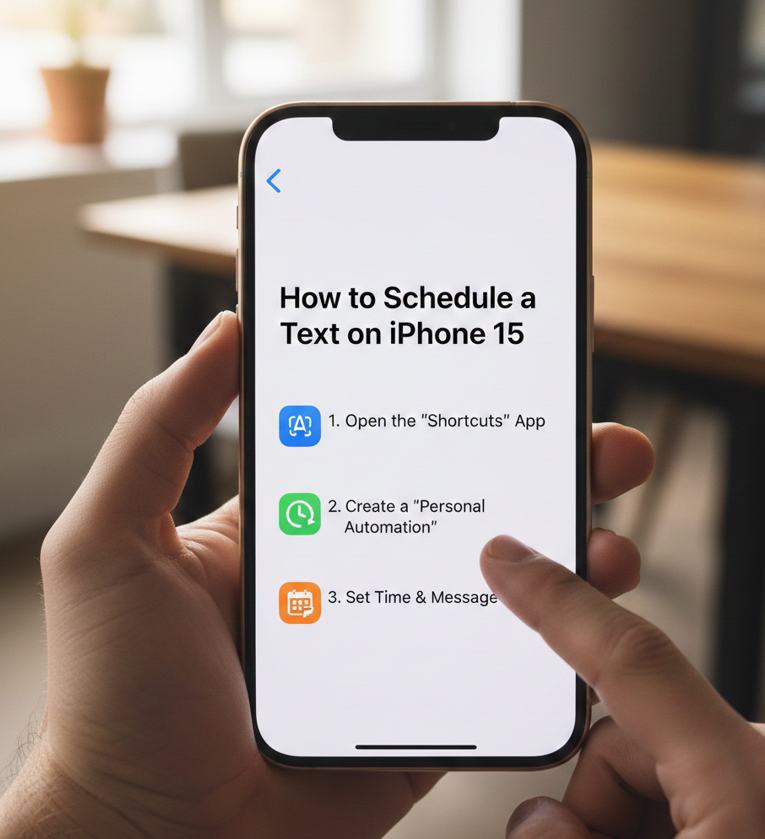
The iPhone 15, with iOS updates, supports native text scheduling through Shortcuts, providing a smoother experience compared to older models. Users can also integrate with Calendar reminders for precise notifications.
• Creating a personal automation
Open Shortcuts → Automation → Create Personal Automation → Time of Day. This setup allows recurring or one-time scheduled messages.
• Selecting contacts carefully
Add the intended recipients before confirming the automation. This reduces mistakes and ensures messages reach the right people.
• Inputting the message
Type your message once; the automation remembers it for scheduled delivery. The app supports rich content like images and URLs.
• Choosing frequency
Decide if the message is a one-time send or recurring daily/weekly. Recurring scheduling is ideal for reminders or updates.
• Testing automation
Test with your number first to avoid unexpected errors. Confirm iOS permissions allow sending messages via automation.
• Editing and disabling automations
Users can pause, edit, or delete scheduled texts anytime, offering flexibility for changing plans or correcting messages.
Also Read : How to Get Rid of Mice: A Complete, Practical & Humane Guide
How to Schedule a Text on iPhone 14
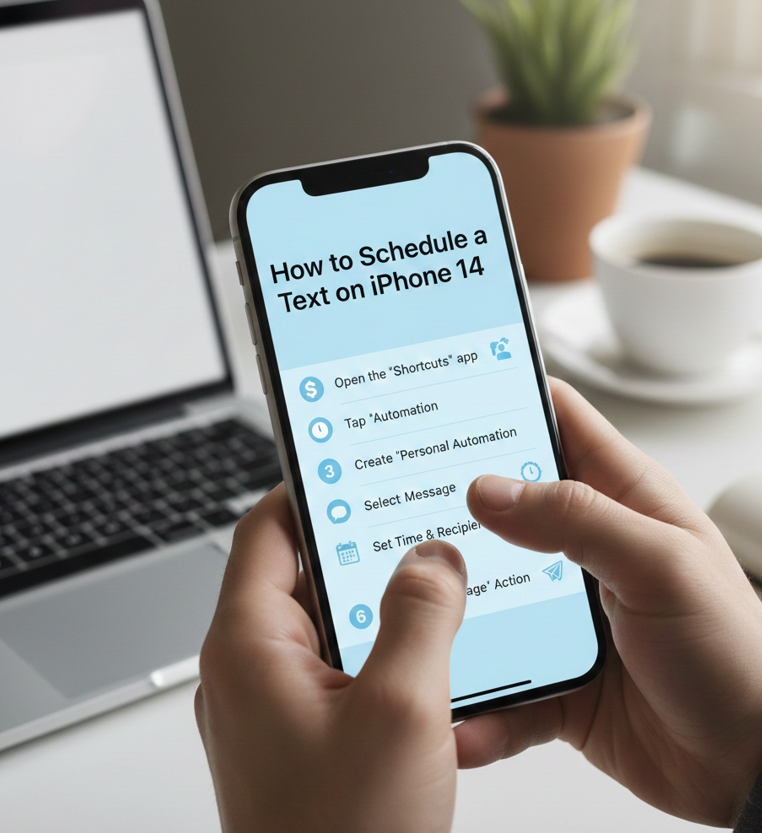
iPhone 14 users can schedule texts using Shortcuts or third-party messaging apps. These options ensure timely communication without requiring manual intervention.
• Access Shortcuts app
Launch Shortcuts → Automation → + → Create Personal Automation. Select “Time of Day” to schedule your message.
• Choose “Send Message” action
Pick the recipient(s) and input the message content. This ensures the scheduled text sends automatically.
• Set the precise time
Enter the exact hour and minute for delivery. Shortcuts ensures the message is dispatched at the scheduled time.
• Enable “Ask Before Running”
This toggle allows confirmation before sending. For fully automated messaging, you can disable it to send messages automatically.
• Preview automation
Review your settings and recipients. Proper previewing avoids errors or unintended messages.
• Manage scheduled messages
Access all automations in Shortcuts to modify, pause, or delete messages anytime. Flexibility ensures user control.
Also Read : How to Get Rid of Gnats: Effective Solutions for Your Home and Plants
How to Schedule a Text on iPhone 13
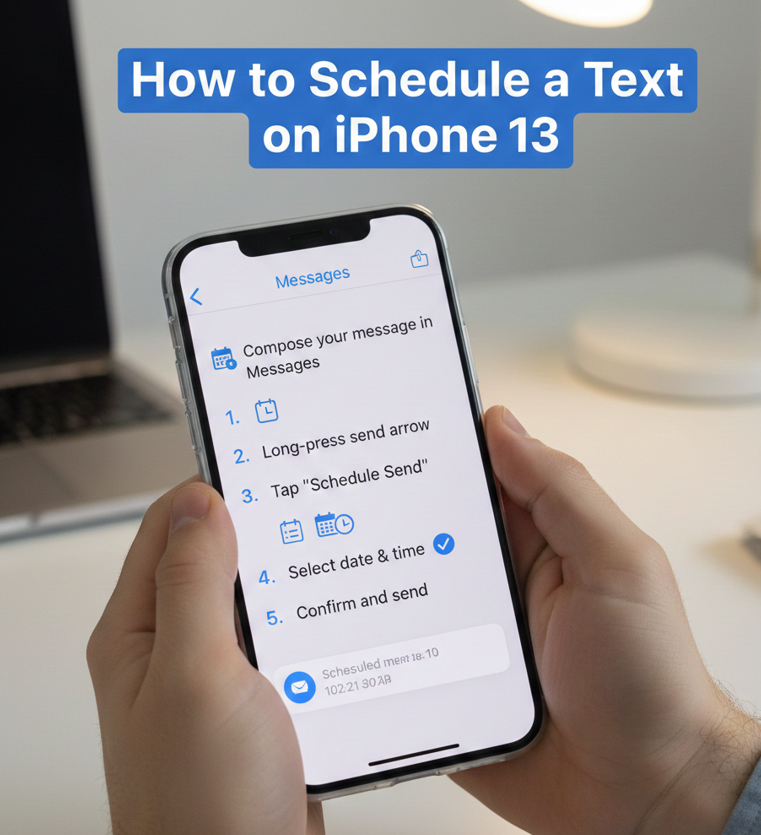
Scheduling texts on iPhone 13 requires iOS 15+ updates for full Shortcuts functionality. Older iOS versions may require third-party apps like Scheduled or IM+ for automation.
• Set up automation
Open Shortcuts → Automation → Create Personal Automation → Time of Day. Input desired time for message delivery.
• Select recipient(s)
Add intended contacts; avoid mistakes by double-checking numbers. Group messages are supported for multiple recipients.
• Compose your message
Type text, emojis, or URLs. Once set, the message is sent automatically.
• Enable or disable confirmation
“Ask Before Running” toggle controls whether you confirm sending, adding flexibility for sensitive messages.
• Test automation first
Send a trial message to yourself. Testing ensures iOS permissions are correct and prevents errors.
• Edit or delete automation
All scheduled texts can be reviewed in Shortcuts and modified, paused, or removed.
Also Read : How to Measure Ring Size: Accurate Methods for Men and Women
How to Schedule a Text on iPhone 12
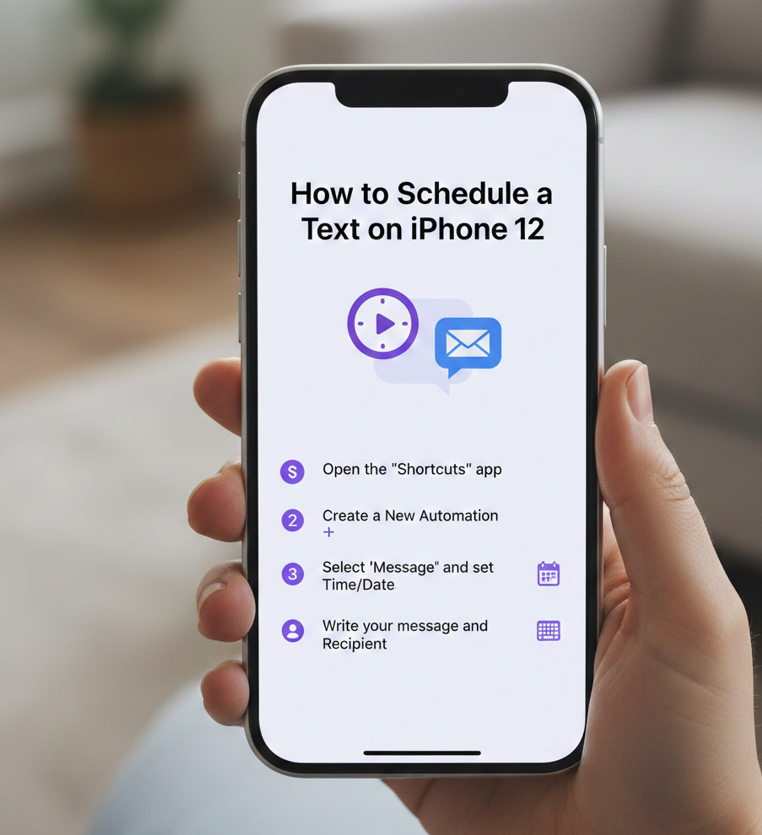
iPhone 12 supports text scheduling primarily via Shortcuts. Users can also use third-party apps for more advanced scheduling features, including recurring messages.
• Open Shortcuts app
Go to Automation → Create Personal Automation → Time of Day to start your scheduled text.
• Select “Send Message”
Choose one or multiple contacts and enter the text. Shortcuts automates delivery at your specified time.
• Set timing accurately
Precise scheduling is critical to ensure messages are sent on time, even if the phone is locked.
• Enable repeat options
Decide whether messages are one-time or recurring daily, weekly, or monthly.
• Test with your number
Testing avoids sending incomplete or incorrect messages. Confirm Shortcuts has the required permissions.
• Manage automations efficiently
Edit, pause, or delete scheduled texts anytime to suit your needs.
Also Read : Silver Chains Insight: How to Pick Quality, Style & Length
How to Schedule a Text on iPhone 11
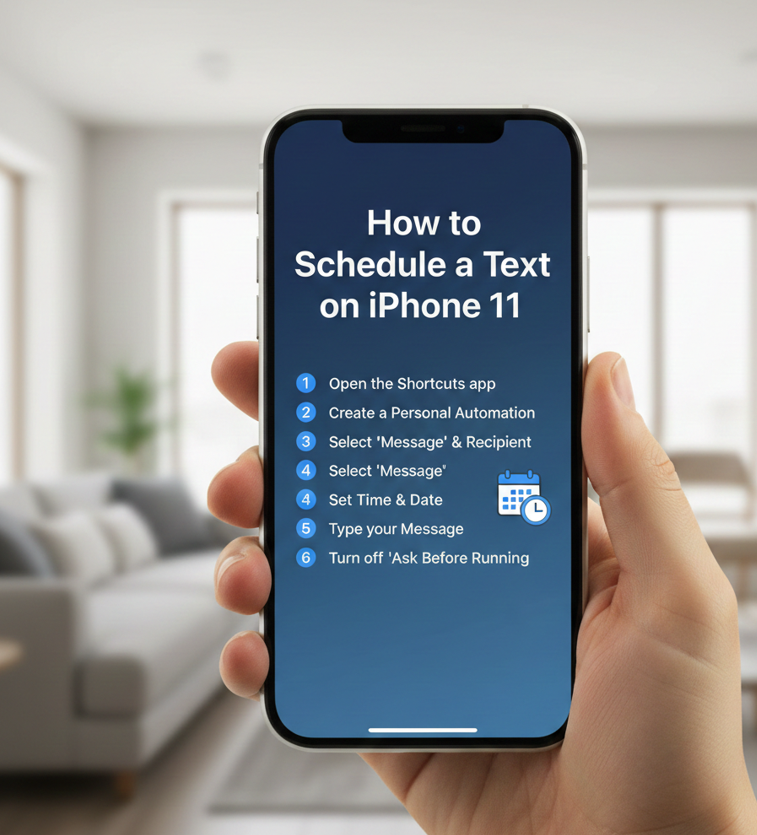
iPhone 11 users can schedule texts using iOS Shortcuts or third-party apps. Older iOS versions may have fewer native features, so third-party tools like Scheduled app are useful.
• Access Shortcuts automation
Open Shortcuts → Automation → Personal Automation → Time of Day.
• Add recipient and message
Input correct contact info and compose your message.
• Set schedule
Choose the exact date and time to send.
• Enable auto-send toggle
Decide whether to confirm sending each time or allow automatic dispatch.
• Test before relying
Send a test message to ensure automation works as intended.
• Edit or delete scheduled texts
You can adjust message content, timing, or recipients anytime.
Also Read : Vintage Louis Vuitton Bags: How to Identify, Buy & Care for Them
How to Schedule a Text from iPhone to Android
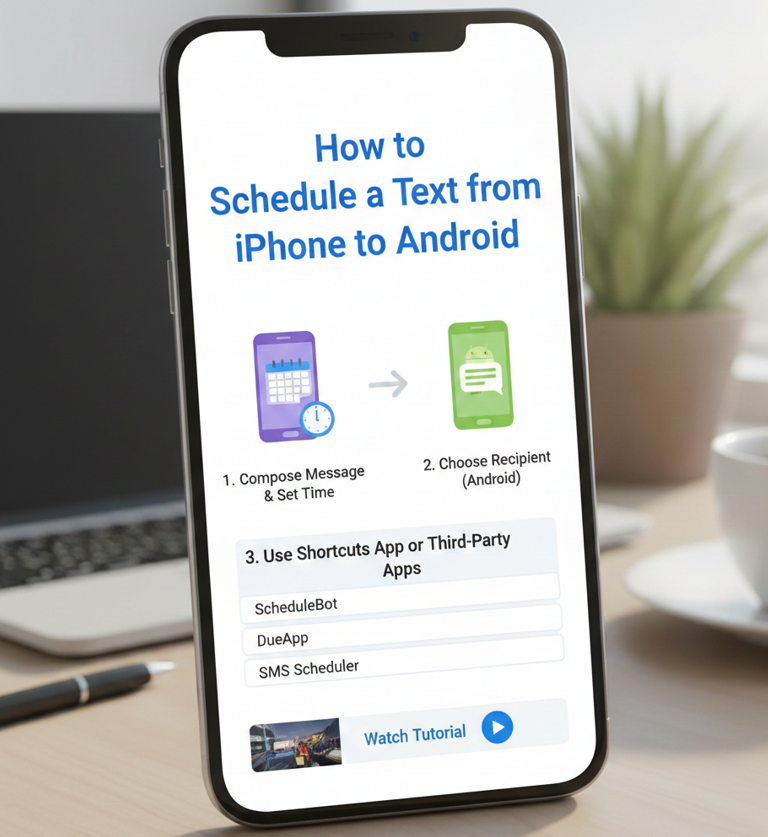
Sending scheduled texts to Android users is slightly different, as iMessage automation only works with Apple devices. Using third-party apps or SMS gateways ensures compatibility.
• Use third-party apps
Apps like Scheduled or Pulse support cross-platform message scheduling.
• Set recipient and message
Input the Android contact and type your message clearly.
• Choose date and time
Select exact scheduling time; the app handles delivery notifications.
• Enable reminders or auto-send
Some apps remind you to send the message manually; others send automatically.
• Test cross-platform delivery
Ensure the message arrives on Android before scheduling important communications.
• Maintain app permissions
Allow access to contacts, notifications, and messaging functions for smooth operation.
Conclusion
Learning how to schedule a text on iPhone is essential for efficiency and timely communication. From iPhone 11 to iPhone 16, native Shortcuts and third-party apps allow seamless scheduling to both Apple and Android users. Following step-by-step methods, testing automations, and managing permissions ensures messages are sent reliably without errors.
By integrating scheduled texts into your routine, you can streamline communication, improve productivity, and never miss important messages again
FAQs
Can I schedule a text on iPhone without third-party apps?
Yes, using the Shortcuts app, you can schedule iMessages natively.
Will scheduled messages send if my iPhone is off?
No, your iPhone must be on and connected to a network at the scheduled time.
Can I schedule texts to Android devices from iPhone?
Yes, third-party apps like Scheduled or Pulse allow cross-platform message scheduling.
Does iPhone allow recurring scheduled messages?
Yes, Shortcuts supports recurring daily, weekly, or monthly message automation.
Is scheduling messages secure?
Yes, native Shortcuts automation and trusted third-party apps maintain user privacy and security
Visit For More Information Go To entrepreneurideas