

In today’s location-driven world, knowing how to drop a pin is more than a navigation trick—it’s a practical digital skill that saves time, prevents confusion, and improves communication. Whether you’re meeting friends, sharing your exact location with a delivery driver, or saving a hard-to-find place, dropping a pin allows you to mark a precise spot on a digital map.
Modern smartphones and mapping apps like Google Maps make it easy to drop, save, and share pins, yet many users only scratch the surface of what this feature can do. According to Google usage data, over 1 billion people use Google Maps monthly, but a significant portion still rely on vague addresses instead of precise pin locations.
This guide is written from hands-on experience and platform-specific expertise to help you understand how to drop a pin on Google Maps, iPhone, Android, desktop, and via text, while explaining real-world use cases, common mistakes, and best practices.
What Does It Mean to Drop a Pin?

Dropping a pin means manually marking a specific geographic location on a digital map when an address or business listing is unavailable, inaccurate, or insufficient. The pin represents a set of GPS coordinates that can be saved, shared, or navigated to.
A dropped pin is especially useful in rural areas, new developments, parking locations, hiking trails, or event meet-up points where formal addresses don’t exist.
• Pins represent exact GPS coordinates
Unlike addresses, pins use latitude and longitude, which improves accuracy in navigation and location sharing.
• Pins work independently of business listings
Even if a place isn’t registered on Google Maps, a pin can still mark it.
• Pins are platform-agnostic
Dropped pins can be shared across devices, apps, and operating systems.
• Pins reduce miscommunication
Sharing a pin eliminates ambiguity caused by similar street names or large venues.
• Pins can be saved for future use
You can label and store pins for personal reference.
• Pins improve real-time coordination
They are essential for ride-sharing, emergency situations, and travel planning.
Also Read :-How to Cook Green Beans: The Complete Healthy Cooking Guide for Every Method
How to Drop a Pin on Google Maps (Mobile App)
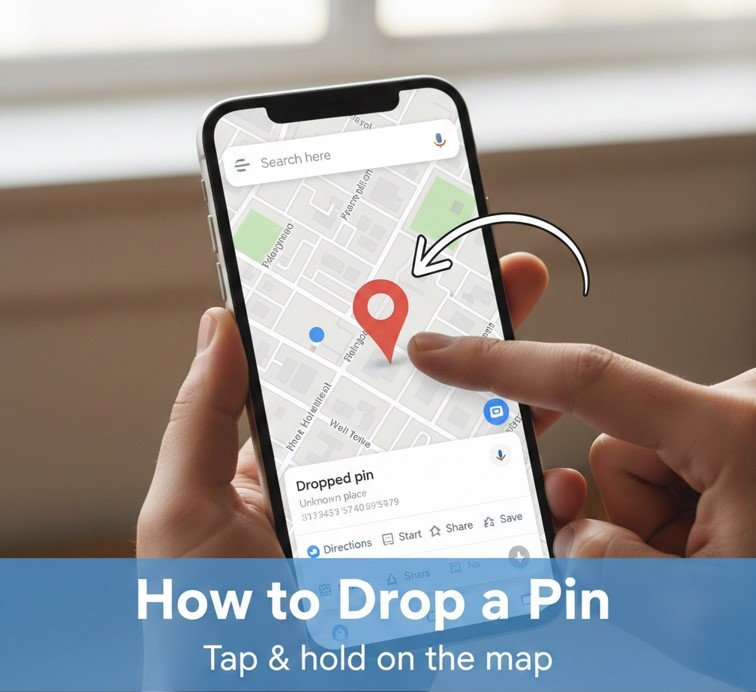
Google Maps dominates digital navigation due to its accuracy, real-time updates, and cross-platform compatibility. Dropping a pin on Google Maps allows you to instantly save or share a location with anyone.
Step-by-Step Guide: Google Maps Mobile
• Open the Google Maps app
Ensure location services are enabled so the map loads your current area accurately.
• Find the general area on the map
You can search nearby or manually zoom and pan to the desired location.
• Tap and hold on the screen
Holding your finger on the map drops a red pin automatically.
• Confirm the pin location
Adjust by moving the map slightly and re-dropping if needed.
• Access pin details
Swipe up to see options like save, share, or get directions.
• Share the pin instantly
Send it via text, email, WhatsApp, or social apps.
Also Read :– How to Clean TV Screen Safely Without Damaging It (Complete 2026 Guide)
How to Drop a Pin on Google Maps Desktop
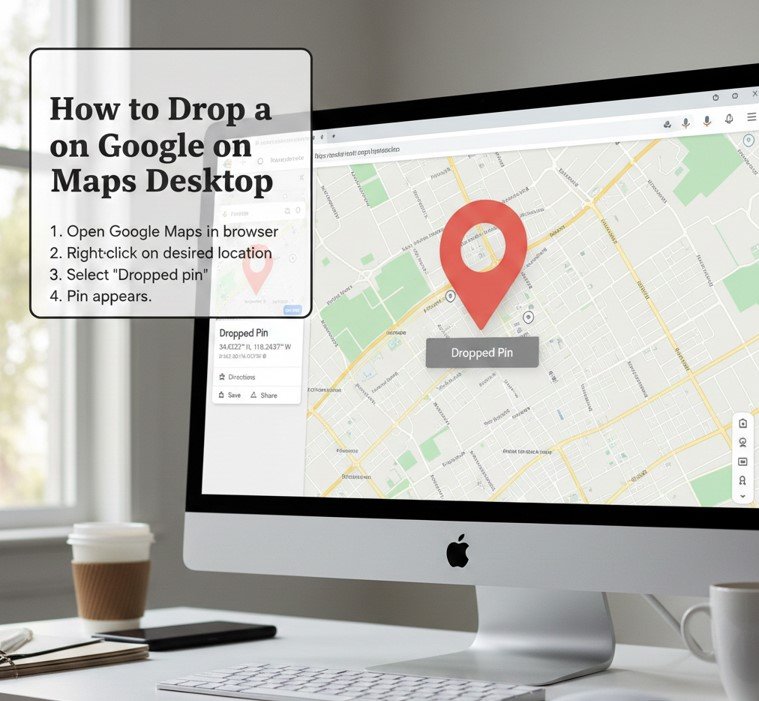
Dropping a pin on Google Maps desktop is ideal for trip planning, professional use, logistics, and presentations where a larger screen provides better visibility.
Desktop Instructions Explained
• Open Google Maps in a browser
Works on Chrome, Edge, Safari, and Firefox.
• Navigate to the location manually
Zoom and drag the map to pinpoint the exact spot.
• Left-click on the location
A gray pin appears, which can be converted into a saved location.
• View location coordinates
Coordinates appear in the information panel.
• Save or label the pin
Add it to starred places or custom lists.
• Share via link
Copy the URL and send it to others.
Also Read : How to Tame a Silver Fox: Complete Movie Guide, Story, and Viewing Options
How to Drop a Pin on iPhone Apple Maps & Google Maps
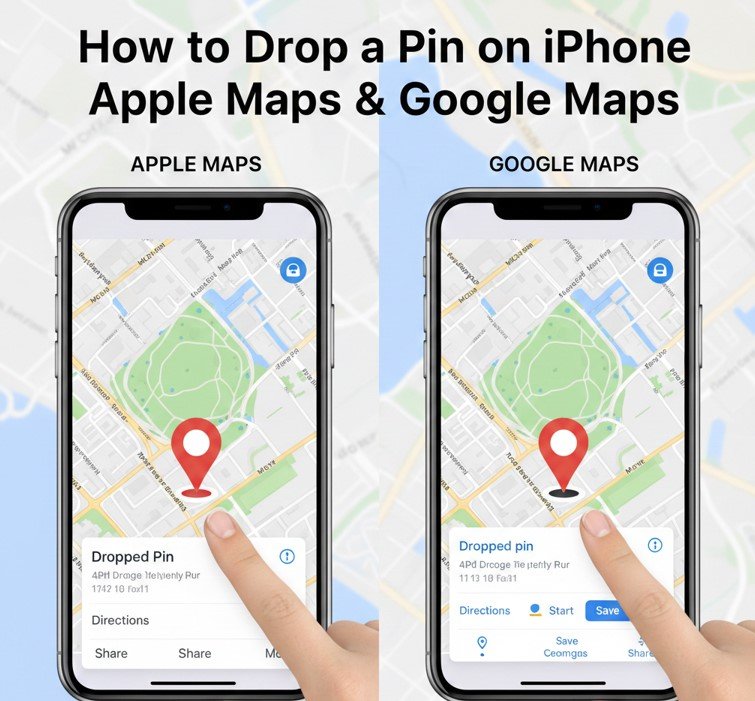
iPhone Location Pinning Explained
iPhone users can drop pins using Apple Maps or Google Maps, both of which support precise location sharing.
iPhone Pin Dropping Steps
• Using Apple Maps
Open the app and long-press on the desired location.
• Using Google Maps on iOS
Tap and hold until a red pin appears.
• Refine location placement
Zoom in for better accuracy before dropping.
• Save the location
Add it to favorites or guides.
• Share via Messages or AirDrop
iOS integrates deeply with Apple’s sharing ecosystem.
• Use pin for navigation
Start turn-by-turn directions instantly.
Also Read : How to Play Pickleball: The Ultimate Step-by-Step Guide for Beginners
How to Drop a Pin on Android
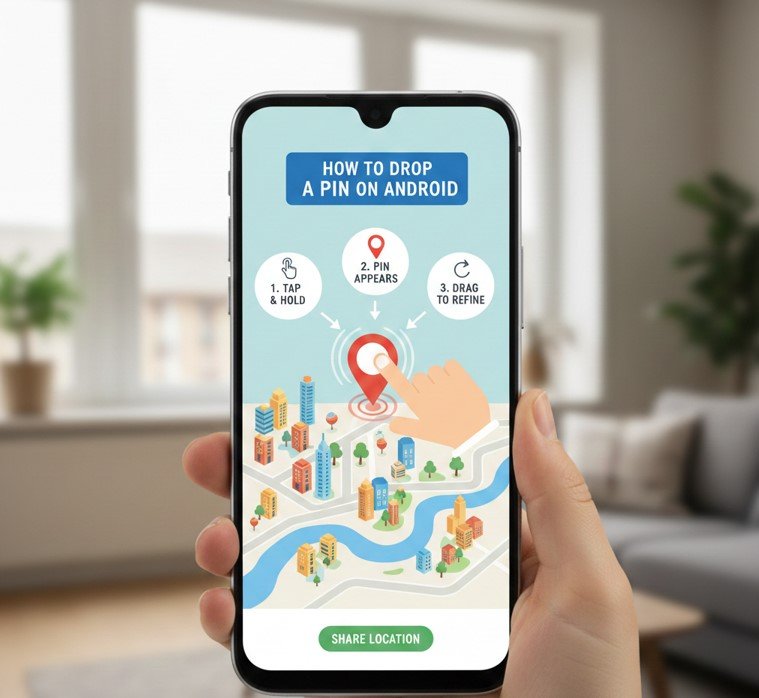
Android devices rely heavily on Google Maps, making the pin-dropping process intuitive and consistent across brands.
Android Pin Instructions
• Launch Google Maps
Ensure GPS and internet are active.
• Search or browse the map
Manual navigation offers better precision.
• Tap and hold on the map
The red pin appears immediately.
• View pin information
Includes address, coordinates, and nearby places.
• Save to lists
Useful for travel or work routes.
• Share with contacts or apps
Supports SMS, email, and messaging apps.
Also Read : How to Schedule a Text on iPhone: Complete Guide for All Models
How to Drop a Pin Location (Exact GPS Coordinates)
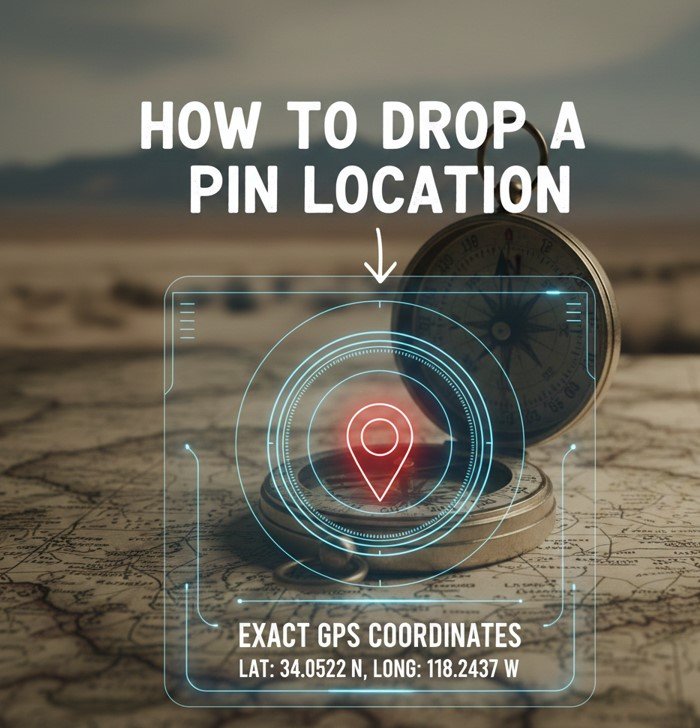
Dropping a pin by coordinates is essential for remote locations, emergency services, outdoor activities, and logistics.
Coordinate-Based Pin Dropping
• Find latitude and longitude
Available via GPS apps or Google Maps.
• Enter coordinates in search bar
Google Maps recognizes coordinate formats.
• Confirm map placement
Ensure it matches the intended spot.
• Save the pin
Label it for clarity.
• Share with precision
Coordinates eliminate ambiguity.
• Use offline maps if needed
Helpful in low-signal areas.
Also Read : How to Remove Gel Nail Polish: Expert Tips and Step-by-Step Methods
How to Drop a Pin to Someone

Dropping a pin to someone means sending them a clickable location link they can open instantly.
Best Practices for Sharing Pins
• Use built-in share options
Ensures compatibility across devices.
• Choose the right app
SMS, WhatsApp, email, or Messenger.
• Add context in your message
Explain why the pin matters.
• Confirm recipient access
Ensure they can open Google or Apple Maps.
• Avoid screenshots alone
Screenshots lack navigation functionality.
• Resend if location changes
Pins are static unless updated.
Also Read : How to Get Rid of Mice: A Complete, Practical & Humane Guide
How to Drop a Pin in Text Message
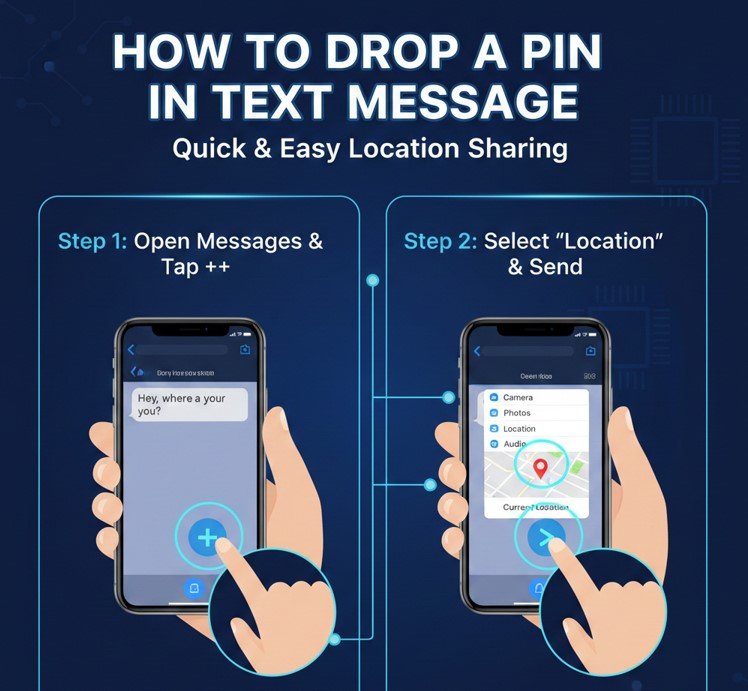
Sending a pin via text is one of the fastest and most reliable ways to share your location.
Text Message Pin Sharing
• Drop the pin first
Use Google or Apple Maps.
• Tap the share button
Choose SMS or Messages.
• Preview the link
Ensure it opens correctly.
• Send with brief instructions
Helpful for less tech-savvy users.
• Test the link yourself
Avoid broken or incorrect pins.
• Keep messages concise
Improves response time.
Also Read : How to Get Rid of Gnats: Effective Solutions for Your Home and Plants
Conclusion
Mastering how to drop a pin gives you precise control over location sharing, navigation, and planning. Whether you’re using Google Maps on desktop, iPhone, or Android—or sending a pin via text—this simple skill eliminates confusion and saves valuable time.
By applying the techniques in this guide, you can confidently mark, save, and share exact locations in any situation, from daily errands to travel and emergencies. In a world driven by accuracy and speed, knowing how to drop a pin is no longer optional—it’s essential.
FAQs
Can I drop a pin without internet?
Yes, if maps are downloaded offline, but sharing requires connectivity.
Is dropping a pin more accurate than an address?
Yes, pins use GPS coordinates and are often more precise.
Can I edit a dropped pin?
You must remove and re-drop it; pins themselves aren’t editable.
Visit For More Information Go To entrepreneurideas