
Your Apple ID password is one of the most important security keys protecting your personal data, including photos, emails, contacts, backups, and purchases. Knowing how to change Apple ID password ensures your account stays secure and accessible, especially if you suspect unauthorized access or simply want to strengthen your digital security.
Your Apple ID connects multiple services such as iCloud, App Store, FaceTime, and device backups. According to Apple Inc., over a billion users rely on Apple ID credentials to protect their personal information. If your password is weak, reused, or compromised, attackers could access sensitive files, financial data, and even lock you out of your devices.
This comprehensive guide explains everything you need to know about changing your Apple ID password on iPhone, iPad, or other devices—even if you forgot it or don’t have access to your phone number. You’ll also learn best practices, troubleshooting tips, and security strategies to protect your account long‑term.
Why Changing Your Apple ID Password Is Important
Changing your Apple ID password is essential for protecting your privacy, financial information, and digital identity. Cybersecurity experts recommend updating passwords regularly, especially for accounts connected to personal devices and payment methods.
Key Reasons to Update Your Password
. Protect against unauthorized access
If someone gains access to your password, they could access your iCloud data, including photos, emails, and backups. Changing your password immediately blocks unauthorized users. This is especially important if you receive suspicious login alerts or security notifications.
Regular password changes reduce the risk of hacking. Hackers often rely on old leaked passwords. Updating your password ensures previously exposed credentials no longer work.
. Improve account security and privacy
Strong passwords prevent unauthorized access. Weak passwords are easy to guess using automated tools. Changing your password to a complex combination improves protection significantly.
Apple uses encryption and security layers, but your password remains the first line of defense.
. Prevent identity theft and fraud
Your Apple ID may be linked to payment methods. Attackers could make purchases or steal information. Changing your password helps prevent financial loss and fraud.
Immediate password updates protect your account and stop ongoing attacks.
. Maintain device access and control
Your Apple ID controls device access, backups, and tracking features. Losing access could prevent you from using your device fully.
Changing your password ensures you maintain control.
. Resolve login errors and account lockouts
If you enter the wrong password multiple times, your account may lock. Resetting or changing your password restores access.
. Follow recommended security practices
Security experts recommend updating passwords every 6–12 months. This minimizes risks from data leaks or phishing.
Also Read:- How to Make Pancakes: The Ultimate Step-by-Step Guide for Perfect Results
How to Change Apple ID Password on iPhone
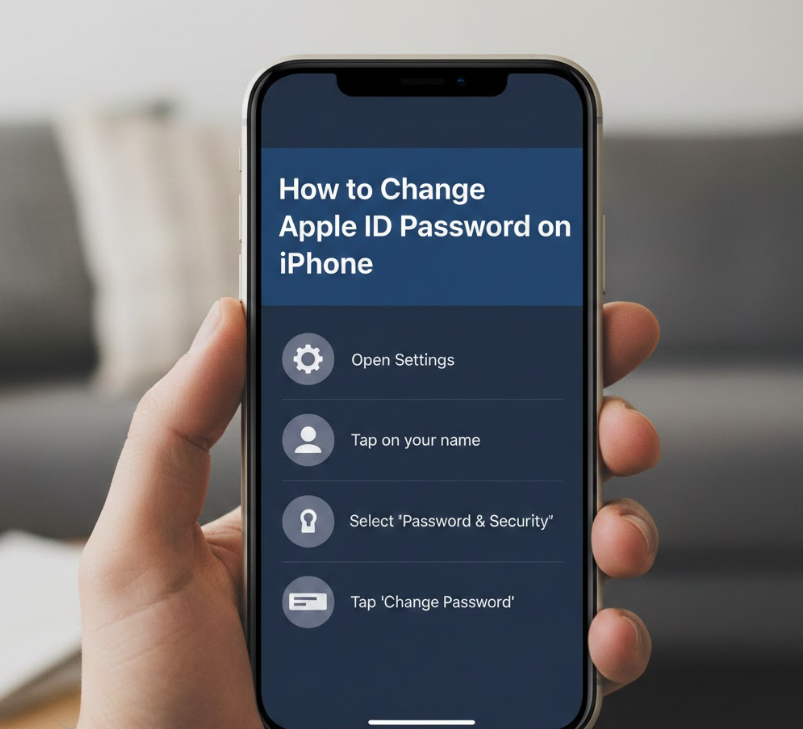
Changing your Apple ID password directly on your iPhone is the fastest and easiest method. This method works if you are currently signed in and remember your existing password.
Steps to Change Password on iPhone
. Open Settings and access your Apple ID profile
Open the Settings app on your iPhone. Tap your name at the top. This opens your Apple ID account dashboard.
This section contains your personal account settings, devices, and security options.
. Tap Sign‑In & Security and select Change Password
Tap “Sign‑In & Security.” Then select “Change Password.” You may be asked to enter your iPhone passcode.
This verifies your identity before allowing password changes.
. Enter your current password and new password
Type your current password. Then enter a new password. Confirm the new password.
Choose a strong password with uppercase letters, numbers, and symbols.
. Tap Change to confirm password update
Tap “Change Password.” Your password updates immediately.
All Apple services will require the new password.
. Sign in again on all devices
You may need to sign in again on other Apple devices. This ensures account security across devices.
. Verify account security settings
Review trusted devices and remove unknown devices.
Also Read:- How to Make Extra Money: The Ultimate Guide to Boost Your Income
How to Change Apple ID Password if You Forgot It
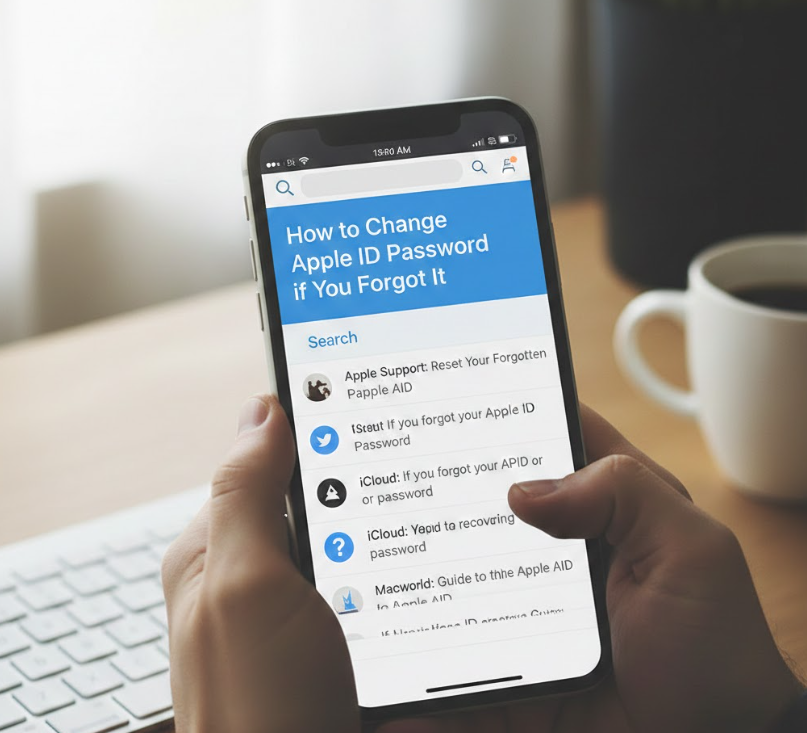
Forgetting your Apple ID password is common. Fortunately, Apple provides several recovery methods.
Steps to Reset Forgotten Password
. Visit Apple ID account recovery page
Go to appleid.apple.com and click “Forgot Password.”
Enter your Apple ID email.
. Verify your identity using trusted device or email
Apple may send a code to your trusted device or email.
Enter the verification code.
. Create a new password
Enter a new secure password. Confirm it.
This immediately replaces your old password.
. Sign in using new password
Use the new password to access Apple services.
. Update password on all devices
Ensure all devices use the new password.
. Enable two‑factor authentication
This improves account security.
Also Read:- How to Clean Grout: The Ultimate Guide for Sparkling Tiles
How to Change Apple ID Password on iPad
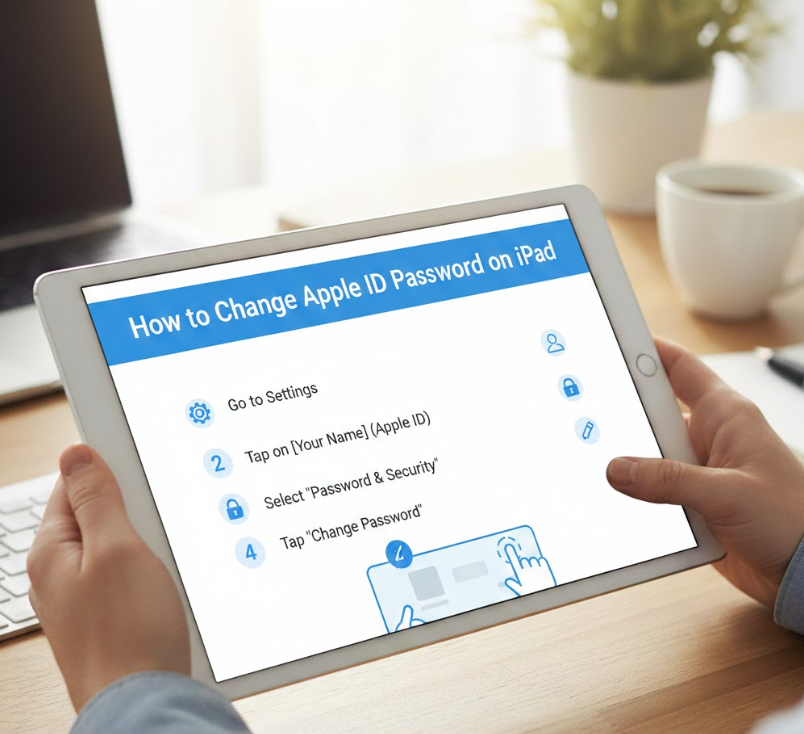
Changing your password on an iPad follows similar steps as on iPhone.
Steps to Change Password on iPad
. Open Settings app
Tap Settings and select your name.
Access Apple ID dashboard.
. Go to Sign‑In & Security
Tap “Sign‑In & Security.”
Select Change Password.
. Enter device passcode
Enter your iPad passcode.
This confirms identity.
. Create and confirm new password
Enter and confirm password.
Choose strong password.
. Save and confirm change
Tap Change Password.
Password updates immediately.
. Sign in on other devices if required
Update password everywhere.
Also Read:- How to Pair Roku Remote: Complete Step-by-Step Guide
How to Change Apple ID Password if Forgotten
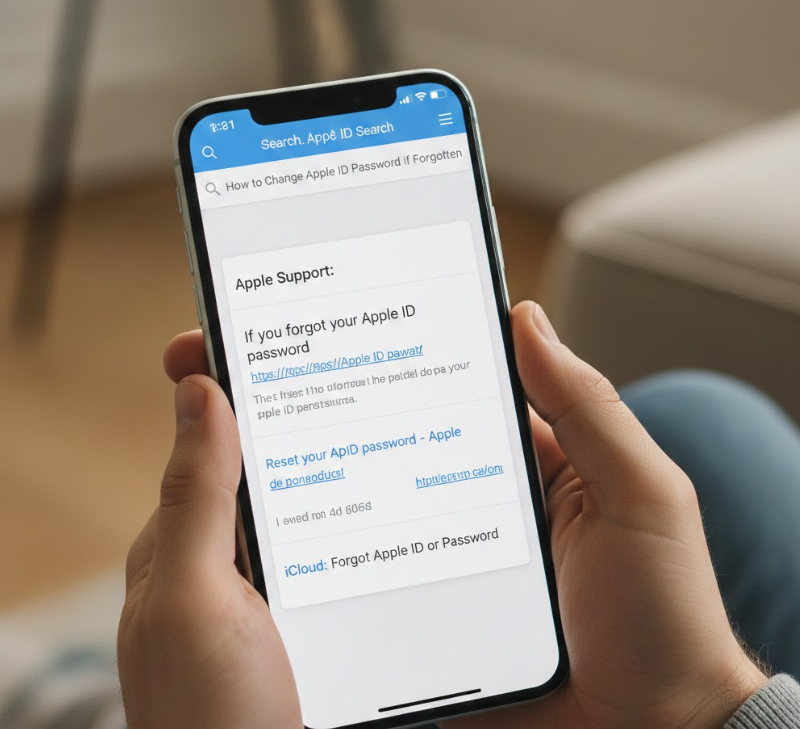
This method works even without access to your device.
Steps Using Apple Account Recovery
. Visit Apple ID website
Go to official Apple ID website.
Click forgot password.
. Enter Apple ID email address
Provide email linked to Apple ID.
Apple identifies account.
. Verify identity with security questions or email
Answer questions or use email verification.
. Enter new password
Create secure password.
. Confirm and save password
Password becomes active immediately.
. Sign in again on devices
Update login credentials.
Also Read:- How to Factor: A Comprehensive Guide for Students and Learners
How to Change Apple ID Password Without Phone Number
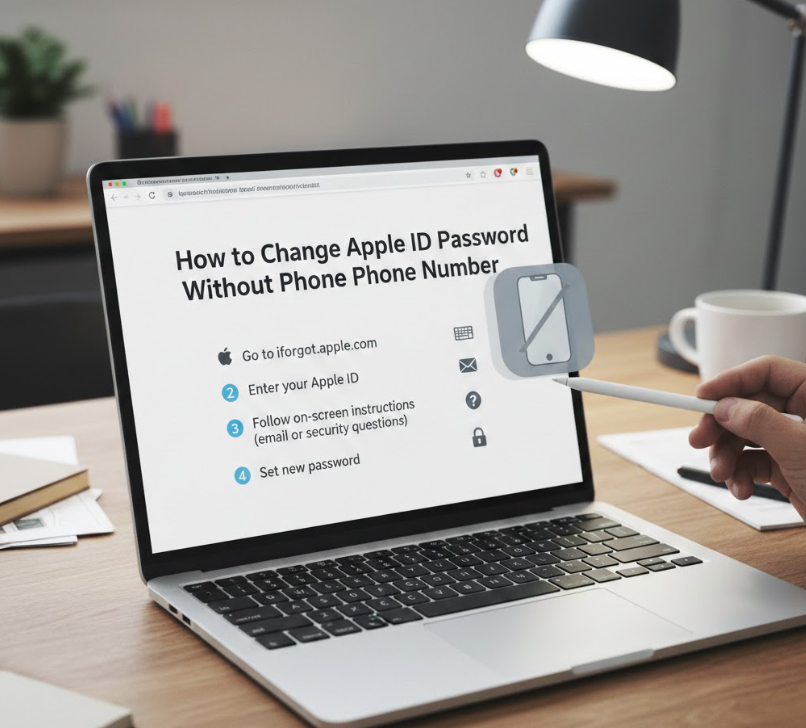
If you cannot access your phone number, you can still reset your password.
Alternative Recovery Methods
. Use trusted device verification
Apple can verify identity using trusted device.
Enter verification code.
. Use recovery email address
Apple sends verification link.
Use email to reset password.
. Use account recovery option
Apple provides recovery process.
May take several days.
. Use Apple Support assistance
Contact official support team.
They guide recovery process.
. Verify identity securely
Provide required information.
Protects account security.
. Create new secure password
Set strong password.
Best Practices for Creating Strong Apple ID Password
Strong passwords protect your account from hackers.
Password Security Tips
. Use at least 12 characters
. Include uppercase and lowercase letters
. Include numbers and symbols
. Avoid common words
. Do not reuse passwords
. Enable two‑factor authentication
Common Problems and Solutions
Common Issues
. Forgot password
. Account locked
. Verification failed
. Cannot access phone number
. Device not trusted
. Password not accepted
Solutions include account recovery and support.
Also Read:- How to Share Location on iPhone: The Complete Practical Guide
Conclusion
Knowing how to change Apple ID password is essential for protecting your personal information, devices, and digital identity. Whether using an iPhone, iPad, or recovery method, updating your password ensures security and uninterrupted access to Apple services.
By following the steps in this guide, creating strong passwords, and enabling two‑factor authentication, you can keep your Apple ID safe and secure long‑term.
FAQs
How often should I change my Apple ID password?
Every 6–12 months or immediately if compromised.
Can I change password without old password?
Yes, using account recovery.
Will changing password log out devices?
Yes, you must sign in again.
Is Apple ID password same as device passcode?
No, they are different.
Visit For More Information Go To entrepreneurideas