

Kindle Unlimited offers access to millions of eBooks, audiobooks, and magazines for a monthly fee, but it isn’t for everyone long-term. Whether you’ve finished your reading goals, want to avoid charges after a free trial, or simply no longer use the service, knowing how to cancel Kindle Unlimited correctly is essential.
This in-depth guide explains every cancellation method, including mobile phones, iPhones, Amazon accounts, apps, free trials, and memberships. It also covers what happens after cancellation, billing rules, refunds, and common mistakes—so you can cancel confidently without losing access prematurely.
What Is Kindle Unlimited and How the Subscription Works
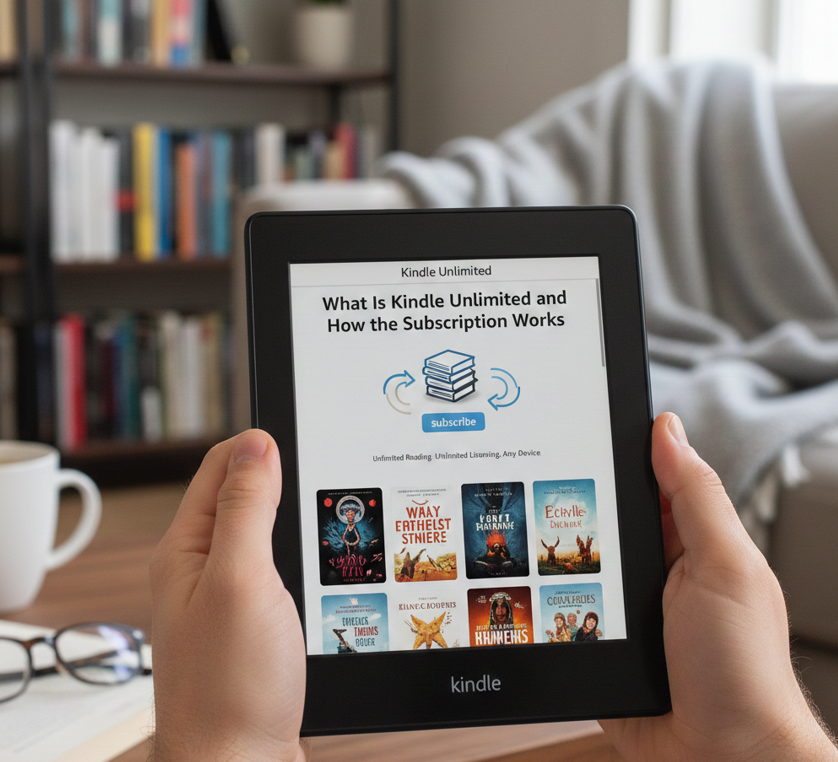
Kindle Unlimited is Amazon’s subscription-based reading service that allows members to borrow up to 20 eligible titles at a time for a monthly fee. The service works across Kindle devices, Fire tablets, smartphones, and desktops through the Kindle app.
Unlike purchasing books outright, Kindle Unlimited titles are borrowed rather than owned. Once the subscription ends, access to borrowed content is revoked, even if the book is still downloaded on your device.
• Kindle Unlimited is billed monthly unless canceled
• Free trials convert to paid plans automatically
• Membership is tied to your Amazon account
• Borrowed books disappear after cancellation
Understanding this structure helps avoid surprises when canceling.
Also Read This:-How to Make Cold Foam: The Complete Barista-Level Guide for Perfect Coffee Topping
Important Things to Know Before Canceling Kindle Unlimited
Before canceling, it’s important to understand how timing affects access and billing.
Canceling does not immediately remove access. Instead, your membership remains active until the end of the current billing cycle or trial period. Amazon does not offer partial refunds for unused time.
• You keep reading access until the renewal date
• No refunds for mid-cycle cancellations
• Borrowed books are removed after expiration
• You can re-subscribe anytime
Knowing these rules ensures you cancel at the right moment.
Also Read This:- How to Make Jello Shots: The Ultimate Step-by-Step Guide for Perfect Results
How to Cancel Kindle Unlimited Subscription (General Method)
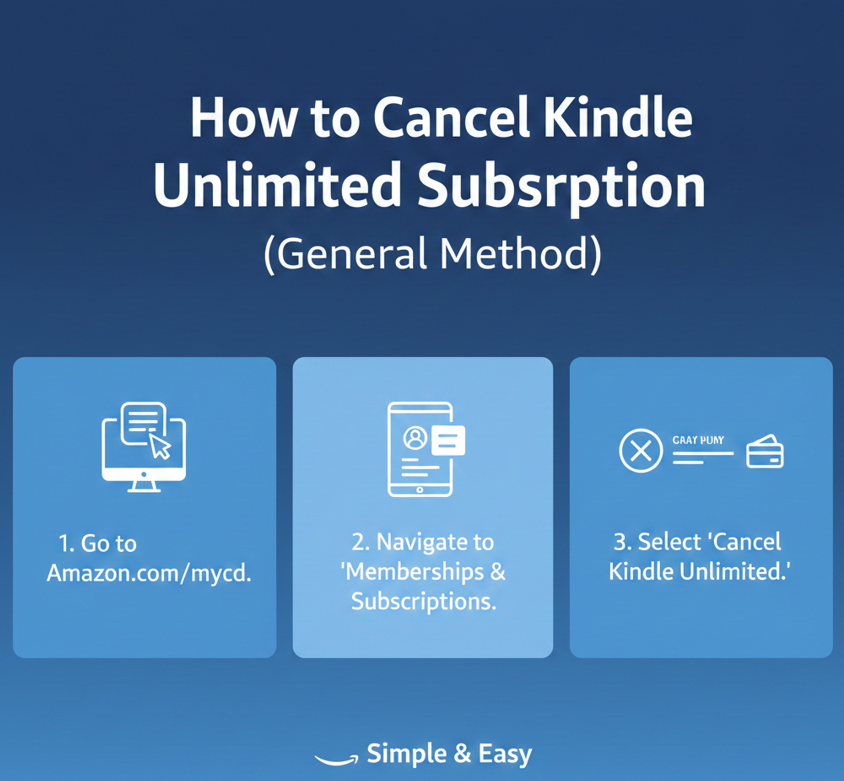
This is the standard method that works for most users across devices.
Canceling Kindle Unlimited is done through Amazon’s website, not directly inside most Kindle apps. Amazon manages subscriptions centrally to ensure account-level control.
• Log into your Amazon account
• Navigate to “Memberships & Subscriptions”
• Find Kindle Unlimited
• Select “Cancel Membership”
• Confirm cancellation
Once completed, Amazon sends a confirmation email.
Also Read This:- How to Draw Stitch (Complete Beginner-to-Pro Drawing Guide)
How to Cancel Kindle Unlimited on Amazon Website
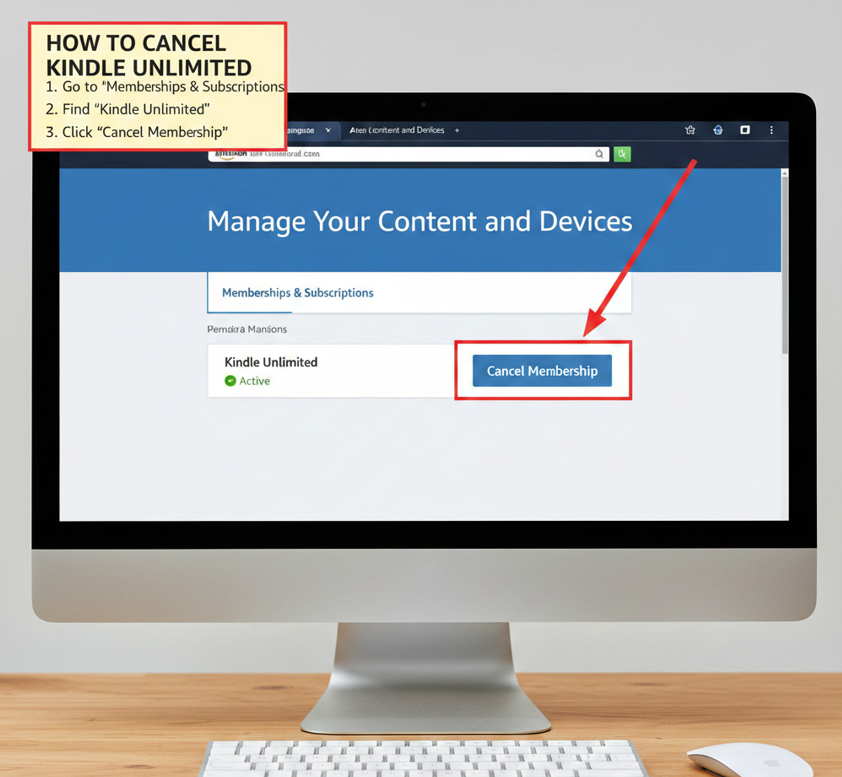
The Amazon website is the most reliable and universal way to cancel.
This method works on desktop, mobile browsers, tablets, and any device with internet access. It avoids app limitations and ensures proper confirmation.
• Open Amazon.com and sign in
• Go to “Accounts & Lists”
• Click “Memberships & Subscriptions”
• Select Kindle Unlimited
• Click “Cancel Kindle Unlimited Membership”
Always check your email to confirm cancellation was successful.
Also Read This:- How to Delete Stickers on iPhone (Complete Step-by-Step Guide)
How to Cancel Kindle Unlimited on Phone (Android & Mobile Browser)
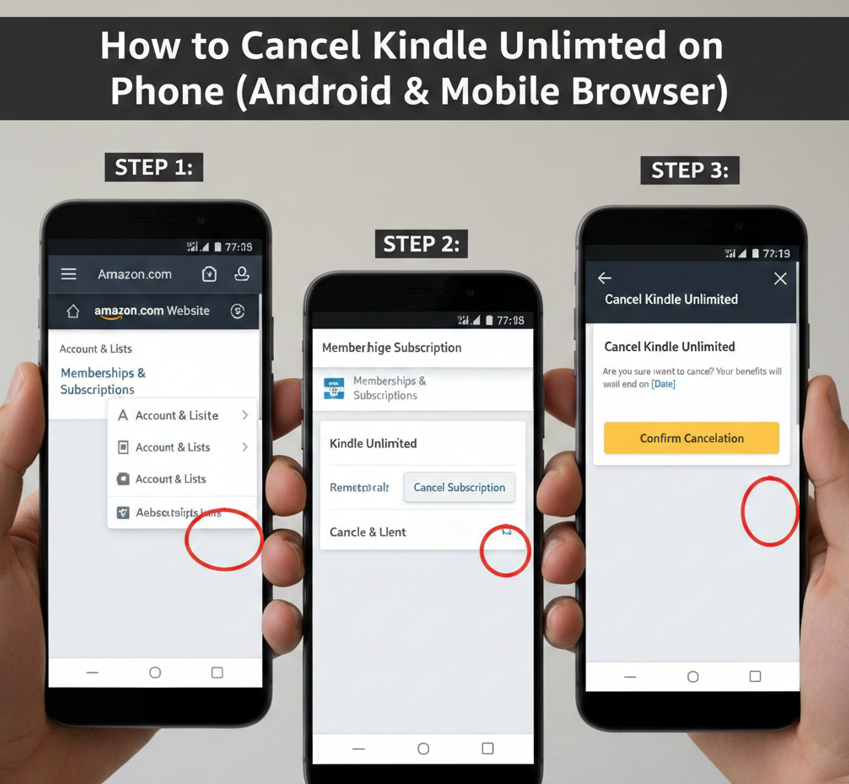
Many users cancel using their phone’s browser rather than the app.
Amazon does not allow full subscription management inside the Kindle reading app. Instead, you must use a mobile browser like Chrome or Safari.
• Open a mobile browser
• Visit Amazon.com
• Sign into your account
• Access memberships
• Cancel Kindle Unlimited
This method works for Android phones and non-iPhone users.
Also Read This:- How to Descale a Keurig (Complete Expert Maintenance Guide)
How to Cancel Kindle Unlimited on iPhone
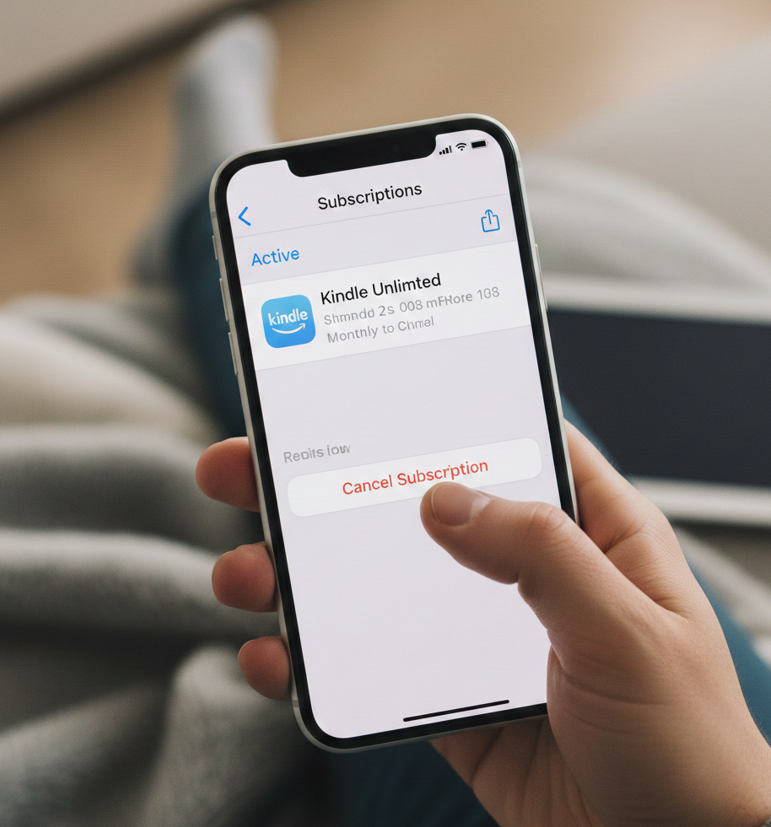
iPhone users often confuse Kindle Unlimited with Apple subscriptions.
Kindle Unlimited is not billed through Apple, even if you read on an iPhone. Cancellation must still be done through Amazon, not the App Store.
• Open Safari on your iPhone
• Log into Amazon.com
• Go to memberships
• Select Kindle Unlimited
• Cancel membership
Canceling via Apple settings will not work.
The Kindle app is for reading—not subscription management.
Amazon intentionally restricts subscription changes within the app due to platform billing policies. The app may redirect you to the website.
• Kindle app does not support cancellation
• You may see a redirect link
• Website login is required
• App removal does not cancel subscription
Deleting the app alone will not stop billing.
Also Read This:- How to Drop a Pin: The Complete Step-by-Step Location Sharing Guide
How to Cancel Kindle Unlimited Free Trial
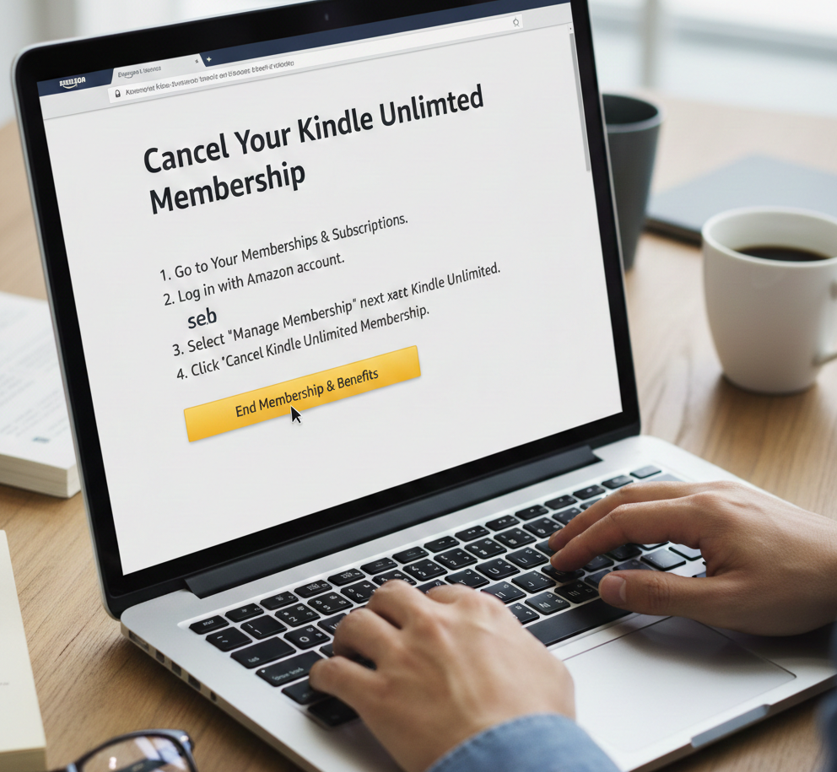
Canceling the free trial is crucial to avoid automatic charges.
Amazon requires manual cancellation before the trial ends. If you cancel early, you still keep access until the trial expiration date.
• Go to memberships on Amazon
• Select Kindle Unlimited
• Click “Cancel Free Trial”
• Confirm cancellation
This prevents your card from being charged.
Cancel Kindle Unlimited Membership (Billing Control)
Your Kindle Unlimited membership is tied directly to your Amazon billing profile.
If you have multiple Amazon accounts, ensure you’re logged into the correct one. Canceling on the wrong account won’t stop charges.
• Verify correct Amazon account
• Check active memberships
• Cancel Kindle Unlimited
• Save confirmation email
Billing stops after the current cycle ends.
How to Cancel Kindle Unlimited Account vs Subscription
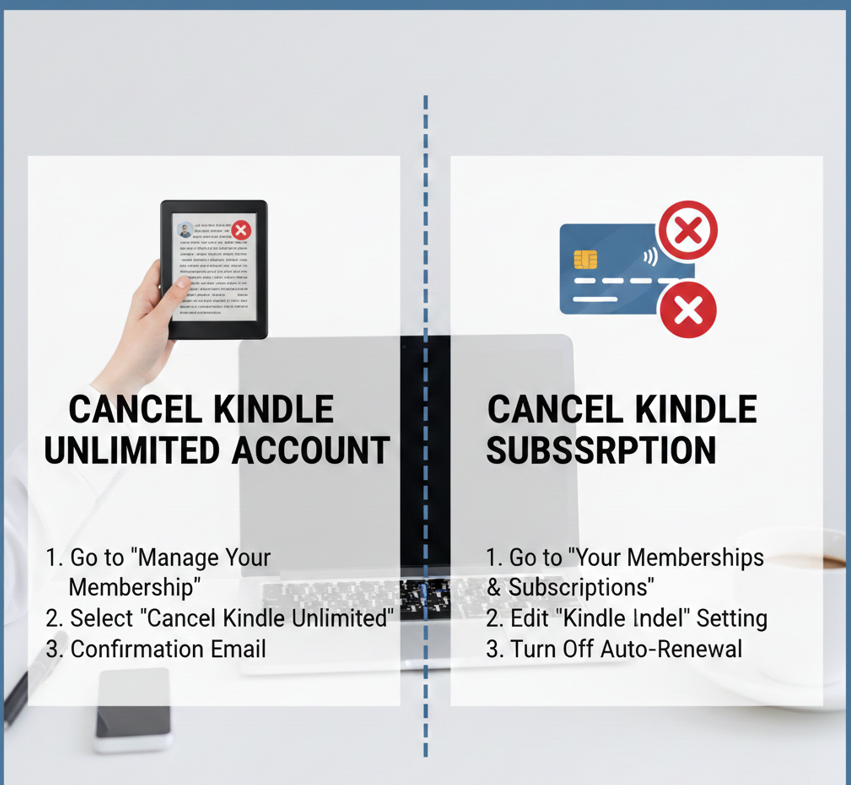
Canceling the subscription is different from deleting your Amazon account.
You do not need to close your Amazon account to cancel Kindle Unlimited. Subscription cancellation is safer and reversible.
• Subscription cancellation stops billing
• Account deletion removes all Amazon services
• Kindle purchases remain intact
• Reading history may still be saved
Always cancel the subscription, not the account.
What Happens After You Cancel Kindle Unlimited
After cancellation, access continues temporarily.
Once your billing period ends, borrowed books automatically return, and you’ll need to purchase titles to continue reading.
• Access remains until end date
• Borrowed titles are removed
• Purchased books stay available
• You can rejoin anytime
Amazon sends reminders before expiration.
Common Problems When Canceling Kindle Unlimited
Some users experience issues during cancellation.
These problems usually involve account confusion or app limitations rather than system errors.
• Canceling wrong Amazon account
• Using Kindle app instead of website
• Expecting immediate book removal
• Not receiving confirmation email
Always double-check account details.
Conclusion:
Knowing how to cancel Kindle Unlimited properly helps you avoid unwanted charges while keeping reading access until the right time. Whether you’re canceling on your phone, iPhone, Amazon website, or during a free trial, the key is using the Memberships & Subscriptions section of your Amazon account.
By following this guide, you can cancel confidently, protect your billing, and rejoin anytime—without losing control of your Amazon account
FAQs
Will I lose books immediately after canceling?
No. You keep access until the billing or trial period ends.
Can I restart Kindle Unlimited later?
Yes. You can re-subscribe anytime using the same account.
Does uninstalling the Kindle app cancel the subscription?
No. Billing continues unless canceled through Amazon
Visit For More Information Go To entrepreneurideas