

If you’ve ever wondered how to AirPlay to TV, you’re not alone. Whether you want to stream movies, mirror a presentation, share vacation photos, or play mobile games on a bigger screen, Apple’s AirPlay technology makes it incredibly simple—when you know the right steps.
AirPlay is Apple’s proprietary wireless streaming protocol that allows you to mirror or stream content from compatible devices like iPhone, iPad, and Mac to supported televisions and streaming devices. With millions of households using smart TVs and Apple devices worldwide, understanding how to AirPlay to TV is becoming an essential digital skill.
What Is AirPlay and How Does It Work?
Before learning how to AirPlay to TV, it’s important to understand what AirPlay actually is and how it functions behind the scenes.
AirPlay is a wireless streaming feature developed by Apple that allows media sharing between devices over a shared network. It supports screen mirroring, video streaming, audio playback, and photo display.
Also Read:- How to Make Alfredo Sauce: The Ultimate Creamy Guide for Home Cooks
How AirPlay Technology Functions

• Wireless Screen Mirroring via Wi-Fi Protocols
AirPlay works primarily over Wi-Fi networks. Both the sending device (like an iPhone or Mac) and the receiving device (such as an Apple TV or compatible smart TV) must be connected to the same wireless network. The protocol securely transmits compressed video and audio data in real time, ensuring minimal lag.
• Device Discovery Using Bonjour Networking
Apple uses a networking system called Bonjour to automatically detect compatible devices on the same network. This eliminates manual pairing steps. When you tap the AirPlay icon, your TV appears instantly if compatible and properly configured.
• Secure Encryption for Private Streaming
AirPlay sessions are encrypted, meaning your content cannot easily be intercepted. When screen mirroring begins, your TV may display a verification code to ensure only authorized devices connect.
• Support for Multiple Media Formats
AirPlay supports streaming from apps like YouTube, Netflix, and Spotify, as well as built-in Apple apps such as Apple TV app and Photos.
• Compatibility with Smart TVs and Apple TV
Many modern smart TVs from brands like Samsung, LG, and Sony now include built-in AirPlay 2 support. Alternatively, you can use an Apple TV device.
• Low Latency for Presentations and Gaming
AirPlay has improved dramatically in recent years. AirPlay 2 reduces buffering and lag, making it suitable for presentations and light gaming, though competitive gamers may still prefer HDMI connections.
Also Read:- How to Change Apple ID Password: Complete Step‑by‑Step Security Guide
How to AirPlay to TV from iPhone
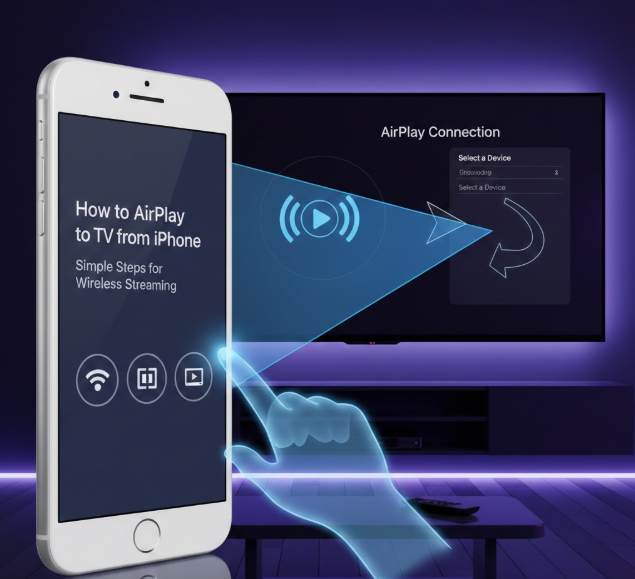
Learning how to AirPlay to TV from iPhone is one of the most common use cases. The process is simple and works on devices running modern iOS versions.
Step-by-Step Guide for iPhone
• Connect to the Same Wi-Fi Network
Ensure both your iPhone and TV are on the same wireless network. This is essential. If they are on separate networks—even if both have internet—AirPlay won’t detect the TV.
• Open Control Center
On iPhones with Face ID, swipe down from the top-right corner. On older models with a Home button, swipe up from the bottom of the screen.
• Tap “Screen Mirroring”
Select the Screen Mirroring button. Your iPhone will scan for nearby AirPlay-enabled devices.
• Choose Your TV
Tap your TV name from the list. If prompted, enter the AirPlay passcode shown on your television.
• Adjust Orientation and Sound
Once connected, your screen appears on the TV instantly. Rotate your phone for landscape mode when streaming videos. Audio will automatically route through the TV speakers.
• Stop AirPlay When Finished
Return to Control Center, tap Screen Mirroring again, and choose “Stop Mirroring.” This prevents accidental sharing later.
Also Read:- How to Make Pancakes: The Ultimate Step-by-Step Guide for Perfect Results
How to AirPlay to TV from Mac or MacBook
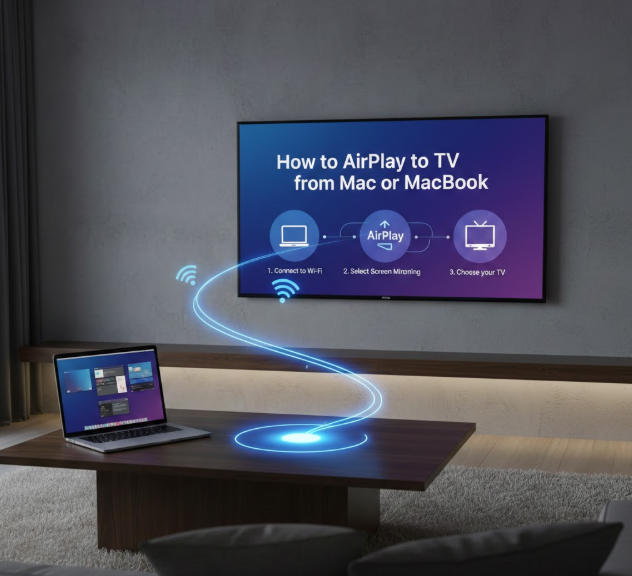
If you’re wondering how to AirPlay to TV from Mac or MacBook, the process is just as simple.
AirPlay from macOS Devices
• Ensure macOS Compatibility
AirPlay works best on recent macOS versions like Ventura or Sonoma. Click the Control Center icon in the menu bar to access Screen Mirroring.
• Select Your AirPlay Display
Choose your TV from the list of available devices. macOS automatically configures resolution settings.
• Choose Mirroring or Extended Display
You can mirror your Mac screen or use the TV as a second display. Extended mode is ideal for productivity tasks like presentations or multitasking.
• Adjust Display Preferences
Navigate to System Settings → Displays to rearrange monitor positions or adjust resolution for better clarity.
• Stream Video Directly from Safari
When streaming through Safari, you may see an AirPlay icon in the video player itself. This streams video only rather than the entire screen.
• Disconnect Properly
Click the Screen Mirroring icon again and deselect your TV to end the session.
Also Read:- How to Make Extra Money: The Ultimate Guide to Boost Your Income
How to AirPlay to TV Without WiFi

A common question is how to AirPlay to TV without WiFi. While traditional AirPlay requires a network, there are workarounds.
Options for AirPlay Without Internet
• Peer-to-Peer AirPlay via Apple TV
If you own an Apple TV (4th generation or later), you can use peer-to-peer AirPlay. It creates a direct wireless connection between devices without needing a router.
• Enable Bluetooth and Wi-Fi On Both Devices
Even without internet, Wi-Fi and Bluetooth must be turned on for device discovery.
• Use Mobile Hotspot
Another workaround is enabling a mobile hotspot from one device and connecting both devices to it.
• HDMI Adapter Alternative
If AirPlay is unstable, use Apple’s Lightning Digital AV Adapter for a wired HDMI connection.
• Adjust Firewall Settings on Mac
If AirPlay doesn’t appear, ensure your Mac firewall allows incoming connections.
• Understand Limitations
Without WiFi, streaming quality may vary, and some apps may restrict playback due to DRM policies.
Also Read:- How to Clean Grout: The Ultimate Guide for Sparkling Tiles
How to AirPlay to TV from iPad, Laptop, Android, or Computer

Many users search how to AirPlay to TV from laptop, iPad, Android, or Windows computer.
Multi-Device Compatibility
• From iPad
The process is identical to iPhone—use Control Center and select Screen Mirroring.
• From Windows Laptop
Windows doesn’t support native AirPlay. However, third-party software like AirServer can simulate compatibility.
• From Android Devices
Android does not natively support AirPlay. You may need an app that bridges casting protocols.
• From Chromebook
Chromebooks support Google Cast but not AirPlay natively. Consider hardware adapters.
• From Desktop Computers
Mac desktops like iMac work identically to MacBooks using Screen Mirroring.
• Using Streaming Apps Instead
Sometimes apps like Netflix allow built-in casting that bypasses AirPlay entirely.
Also Read:- How to Pair Roku Remote: Complete Step-by-Step Guide
Troubleshooting: AirPlay Not Working
If you’re trying to learn how to AirPlay to TV but it isn’t working, here are expert troubleshooting steps.
Fix Common AirPlay Problems
• Restart both devices
• Ensure same Wi-Fi network
• Update iOS or macOS
• Check TV firmware updates
• Disable VPN temporarily
• Reset network settings
Also Read:- How to Factor: A Comprehensive Guide for Students and Learners
Security and Privacy When Using AirPlay
Security matters when streaming content wirelessly.
• Use password protection
• Avoid public Wi-Fi
• Turn off AirPlay when not needed
• Rename devices uniquely
• Enable two-factor authentication for Apple ID
• Monitor device permissions
Also Read:- How to Do Long Division: Step-by-Step Guide for Beginners
Conclusion
Now you fully understand how to AirPlay to TV across multiple devices and scenarios. Whether you’re streaming from an iPhone, MacBook, iPad, or even exploring non-Apple workarounds, AirPlay remains one of the most convenient wireless display technologies available in 2026.
By following the step-by-step instructions, applying troubleshooting fixes, and understanding compatibility requirements, you can confidently mirror your screen anytime.
FAQs
Can I AirPlay to any TV?
Only TVs with AirPlay 2 support or connected Apple TV devices.
Why is my TV not showing up?
Check network settings and ensure AirPlay is enabled.
Does AirPlay use data?
It uses local Wi-Fi data, not cellular, unless using hotspot.
Is AirPlay free?
Yes, AirPlay is built into Apple devices.
Is AirPlay better than HDMI?
For convenience, yes. For zero latency, HDMI may be better.
Visit For More Information Go To entrepreneurideas