
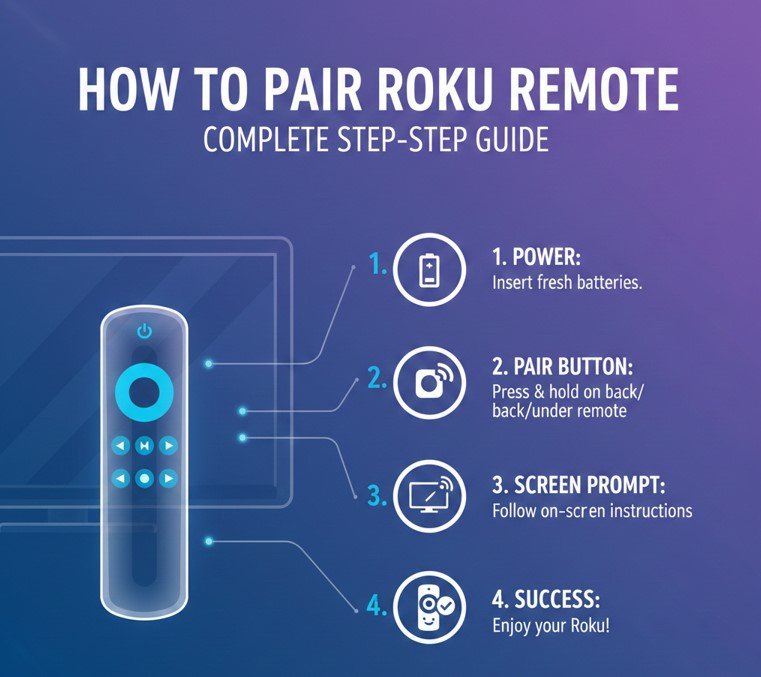
Pairing your Roku remote is a critical step in enjoying seamless streaming on Roku devices. Whether you’re a new Roku user or replacing an old remote, understanding how to pair Roku remote ensures uninterrupted access to your favorite shows, movies, and apps. Proper pairing allows the remote to communicate efficiently with your Roku device, enabling navigation, volume control, and even voice commands if supported.
Modern Roku remotes operate using infrared (IR) technology or wireless connectivity like Wi-Fi Direct. Each type has its own pairing procedure, and knowing which type you own helps prevent errors. Pairing also addresses common issues such as unresponsive buttons, blinking lights, and connectivity problems. This guide provides detailed instructions for pairing remotes to TVs, Roku sticks, Roku boxes, and major TV brands like Samsung, LG, and Vizio.
By the end of this guide, you will have a clear, actionable roadmap to pair any Roku remote, troubleshoot pairing issues, and optimize your viewing experience.
How to Pair Roku Remote to TV
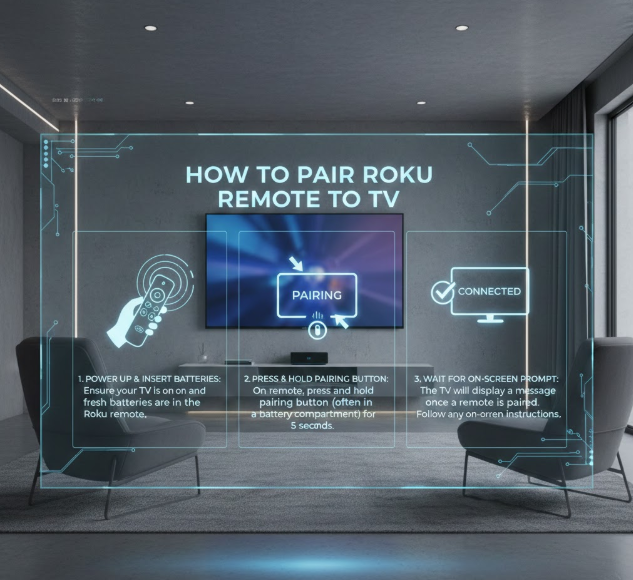
Pairing a Roku remote to a TV ensures you can control both the Roku device and the TV functions like power and volume from a single remote. This setup is ideal for simplifying your entertainment system and reducing clutter.
Pairing a Roku remote to a TV is the process of synchronizing the remote with both the Roku device and the television to allow seamless control. The pairing process enables your remote to communicate not just with the Roku player but also with the TV itself, controlling volume, power, and other basic functions. Modern Roku remotes use wireless protocols or infrared signals depending on the model, allowing either direct line-of-sight control or wireless communication. Proper pairing ensures smooth operation without lag, unresponsive buttons, or repeated setup failures. This is particularly useful for smart homes where multiple devices are connected, as it reduces the number of remotes required and streamlines user experience.
Pairing can be automatic or manual depending on the TV brand, model, and Roku remote type. It is also essential for troubleshooting when devices fail to recognize commands or when upgrading to a new remote. Understanding this process allows users to optimize their setup and maintain consistent performance, ensuring that the Roku experience is uninterrupted, simple, and reliable.
• Power On Devices Properly
Make sure both the TV and Roku device are powered on. Unstable power can prevent pairing and cause connection errors.
• Access Roku Settings
Navigate to Settings > Remotes & Devices > Remotes > Set up remote for TV control. This menu guides the automatic setup process.
• Automatic Code Detection
Roku can automatically detect your TV brand and configure the remote, saving time and effort.
• Manual Code Entry
For older TVs, you may need to enter the TV’s brand code manually. Roku provides on-screen instructions.
• Test All Functions
Confirm that volume, mute, and power buttons work to ensure full remote functionality.
• Save Configuration
Always save your setup to avoid resets during power interruptions or updates.
Also Read:- How to Factor: A Comprehensive Guide for Students and Learners
How to Pair Roku Remote Without Pairing Button
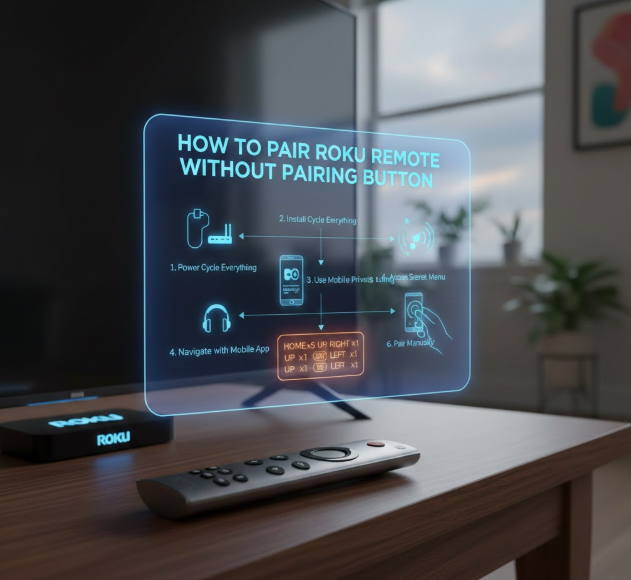
Some Roku remotes do not have a visible pairing button, particularly infrared-only models.
Pairing a Roku remote without a pairing button relies on automatic synchronization. These remotes pair with the Roku device as soon as batteries are installed and the device is powered on. This method simplifies setup, especially for users who prefer minimal manual configuration. The remote communicates via infrared or built-in wireless protocols without needing a dedicated button. Understanding this process ensures that users do not mistakenly assume the remote is defective.
Automatic pairing is particularly helpful for replacement remotes and older Roku models. If the remote does not pair immediately, simple troubleshooting like reinserting batteries or restarting the Roku device often resolves the issue. Being familiar with this method also helps in offline scenarios, such as when Wi-Fi is unavailable, as some remotes pair directly without internet connectivity.
• Insert Fresh Batteries
New batteries trigger automatic pairing and prevent low-power issues.
• Power Cycle Roku Device
Restarting the Roku refreshes connections and enables auto-detection.
• Line-of-Sight Positioning
For infrared remotes, ensure the path to the TV sensor is unobstructed.
• Remove Physical Obstructions
Objects between the remote and TV can block the signal.
• Minimize Wireless Interference
Turn off nearby devices that may disrupt Wi-Fi Direct connections.
• Reset If Needed
Factory reset restores pairing mode for automatic synchronization.
Also Read:- How to Share Location on iPhone: The Complete Practical Guide
How to Pair Roku Remote to Roku Stick
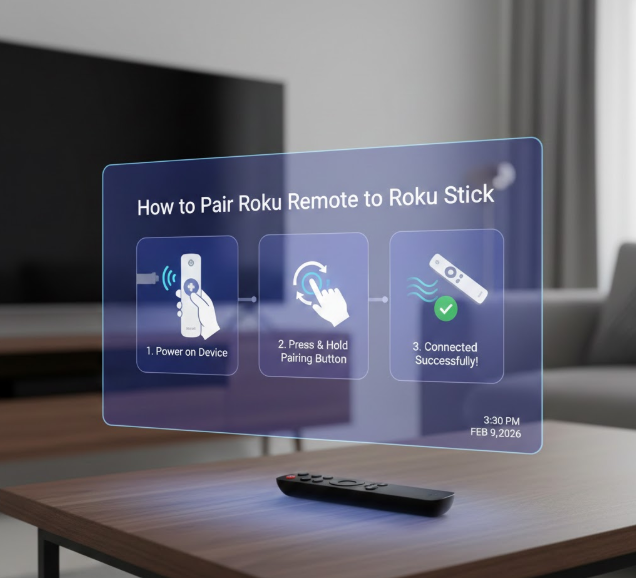
Roku Sticks are compact streaming devices that plug into HDMI ports, requiring wireless remote pairing.
Pairing a Roku remote to a Roku Stick is essential for navigation, playback control, and volume management. Roku Sticks rely on wireless connections, typically Wi-Fi Direct, to communicate with remotes. Proper pairing ensures responsive controls, access to voice search (if supported), and uninterrupted streaming. Unlike Roku TVs, Sticks are separate devices, so the remote must establish a secure wireless connection.
Pairing is simple but requires attention to power supply and initial setup steps. The remote must detect the Stick and complete synchronization. Once paired, users can enjoy all Roku features, including channel browsing, voice commands, and private listening through headphones. Understanding this process prevents failed connections and improves user experience for mobile and compact streaming setups.
• Plug into HDMI Port
Ensure the Stick is securely inserted into the TV.
• Power via Wall Adapter
Avoid insufficient TV USB power; use the adapter included.
• Activate Pairing Mode
Press the pairing button for 5 seconds to initiate detection.
• Confirm On-Screen
Wait for confirmation that the remote is paired.
• Test All Functions
Ensure navigation, volume, and playback buttons work properly.
• Restart if Needed
A reboot refreshes connectivity if initial pairing fails.
Also Read:- How to Attract Birds: A Complete, Science-Backed Guide for Your Yard and Garden
How to Pair Roku Remote to Roku Box
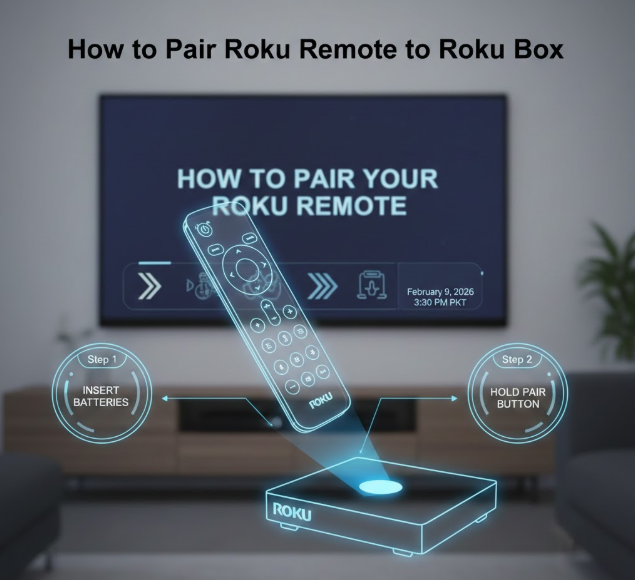
Roku Boxes are larger devices with additional ports and features, also requiring remote pairing.
Pairing a Roku remote to a Roku Box enables full control over streaming, app navigation, and TV functions. Unlike Sticks, Roku Boxes may offer additional capabilities like Ethernet connectivity, advanced settings, and extended channels. Pairing ensures the remote can communicate reliably via Wi-Fi Direct, infrared, or other supported protocols.
Proper pairing is crucial for smooth operation. Failure can result in delayed responses, unrecognized commands, or inability to access certain features. Knowledge of the box’s pairing process also helps with troubleshooting, replacing lost remotes, and enabling voice commands if the remote supports them.
• Plug in Roku Box
Ensure power and HDMI connections are secure.
• Power On Device
Wait until the Roku Box boots fully before pairing.
• Activate Remote Pairing
Hold the pairing button for 5 seconds to enter pairing mode.
• Follow On-Screen Instructions
Select the remote on the Roku interface for successful pairing.
• Test Remote Features
Check navigation, app access, volume, and playback controls.
• Save Settings
Confirm pairing to prevent disconnections during updates.
Also Read:- How to Make a Slip Knot: Step-by-Step Guide for Crochet, Knitting & Bracelets
How to Pair Roku Remote to TV Volume
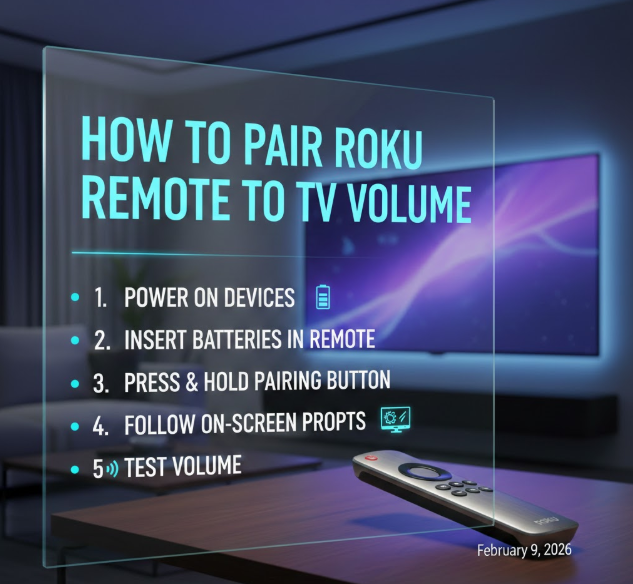
Some Roku remotes control TV volume directly, which requires proper setup.
Pairing the Roku remote to control TV volume is an advanced feature that allows the user to manage both the Roku interface and TV audio with one device. This integration reduces the need for multiple remotes and simplifies the viewing experience. Proper volume pairing ensures instant responsiveness, prevents lag, and supports mute and power commands.
This feature is particularly useful for smart TVs and home theater setups, where users want streamlined control. Many Roku remotes detect the TV brand automatically, but manual configuration is sometimes required for older models. Understanding volume pairing improves usability and provides a more enjoyable entertainment experience.
• Enable TV Control in Settings
Navigate to Settings > Remotes & Devices > Remote for TV Control.
• Select TV Brand
Choose your TV manufacturer for automatic code detection.
• Test Volume and Mute
Ensure the remote adjusts audio and mutes correctly.
• Use Manual Code if Needed
Enter the code manually if auto-detection fails.
• Confirm Power Commands
Check if the remote can turn the TV on/off.
• Save Settings
Preserve the configuration to avoid repeated pairing.
Also Read:- How to Make a Paper Dart: The Ultimate Guide
How to Pair Roku Remote Without WiFi

Sometimes users need to pair a remote offline without Wi-Fi connectivity.
Pairing a Roku remote without Wi-Fi uses direct infrared signals or Wi-Fi Direct connections, bypassing the need for internet. This is important when setting up devices in areas without connectivity or troubleshooting network issues. Offline pairing ensures that the remote communicates directly with the Roku device, providing full navigation and playback control.
It’s particularly useful for new device setups, emergency replacements, or environments with limited internet access. Users can still enjoy all basic Roku features without relying on Wi-Fi.
• Use Infrared Remote
IR remotes pair directly without Wi-Fi.
• Enable Wi-Fi Direct
Wireless pairing without internet still allows remote communication.
• Temporary Mobile Hotspot
Optional for firmware updates if needed.
• Factory Reset Roku Device
Restores default pairing state.
• Manual Configuration
Select the remote in settings for offline pairing.
• Firmware Recovery Mode
Allows pairing even without network connection.
Also Read:- How to Shrink a Shirt: A Complete Practical Guide for the Perfect Fit
How to Pair Roku Remote to Samsung TV
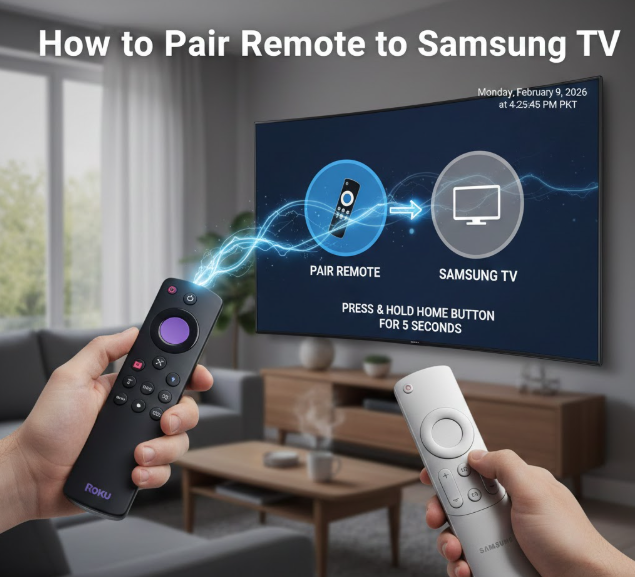
Samsung TVs require CEC settings for remote control integration.
Pairing a Roku remote with a Samsung TV allows full TV and Roku device control. Samsung TVs use HDMI-CEC (Consumer Electronics Control) to enable remote communication. Proper setup ensures volume, power, and input control works seamlessly. Users can also benefit from voice commands if the remote supports them.
• Enable HDMI-CEC
Turn on “Anynet+” in Samsung TV settings.
• Power On Both Devices
Ensure Roku and TV are on.
• Pair via Roku Settings
Navigate Settings > Remotes & Devices > Remote for TV Control.
• Test Volume and Power
Verify functionality after pairing.
• Manual Code Entry if Needed
Use Samsung-specific code if auto-detection fails.
• Save Configuration
Prevent resets during power cycles.
Also Read:- How to Sew a Button: A Complete Beginner-to-Expert Guide for Long-Lasting Results
How to Pair Roku Remote to Vizio TV

Vizio TVs also use CEC and IR settings for Roku remotes.
Pairing Roku remote to Vizio TV ensures seamless control of volume, power, and navigation. Vizio TVs require HDMI-CEC activation and may need IR line-of-sight for certain remotes. Proper pairing provides uninterrupted streaming and eliminates the need for multiple remotes.
• Enable CEC on TV
Go to Menu > System > CEC.
• Power On Devices
Turn on both Roku and Vizio TV.
• Select Remote in Settings
Navigate to Remote for TV Control in Roku.
• Test Volume & Power
Verify all buttons function correctly.
• Manual Code Entry if Required
Use Vizio-specific code for IR remotes.
• Save Settings
Ensure pairing persists after reboot.
Also Read:- How to Tie a Gi Belt: A Step-by-Step Guide for Martial Artists
How to Pair Roku Remote to LG TV
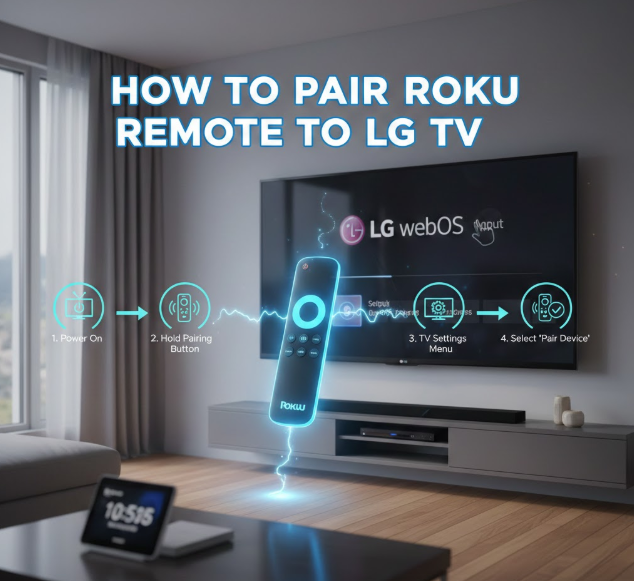
LG TVs require Simplink (HDMI-CEC) activation for pairing.
Pairing Roku remote to LG TV provides full control over TV functions and Roku navigation. LG’s Simplink feature allows the Roku remote to control power, volume, and inputs. Proper setup improves user experience and reduces the need for additional remotes.
• Enable Simplink
Go to Settings > General > Simplink (HDMI-CEC).
• Power On Both Devices
Ensure Roku and LG TV are active.
• Pair via Roku Settings
Navigate to Remote for TV Control.
• Test Remote Functions
Check volume, mute, and power controls.
• Manual Code if Needed
Enter LG TV code for IR remotes.
• Save Configuration
Prevent repeated pairing after updates.
Also Read:- How to Texture a Wall: A Comprehensive Guide to Beautiful Wall Finishes
Conclusion
Learning how to pair Roku remote ensures a seamless streaming experience. Whether pairing to a TV, Stick, Box, or major brands like Samsung, LG, or Vizio, following these steps provides uninterrupted control and simplifies your home entertainment setup. By understanding wireless and infrared remote types, troubleshooting techniques, and brand-specific requirements, users can enjoy a smooth, efficient, and optimized Roku experience.
FAQs
How long does Roku remote pairing take?
Pairing usually completes within 30–60 seconds, depending on remote type.
Can I pair Roku remote without Wi-Fi?
Yes, infrared or Wi-Fi Direct remotes pair without an internet connection.
Why is my Roku remote blinking green?
Blinking green indicates the remote is in pairing mode.
Can I use my phone as a Roku remote?
Yes, the Roku Mobile App allows full remote functionality.
What if my Roku remote won’t pair?
Replace batteries, restart Roku, or perform a factory reset.
Can one Roku remote control multiple TVs?
No, each remote pairs to a single Roku device for proper functionality.
Visit For More Information Go To entrepreneurideas