
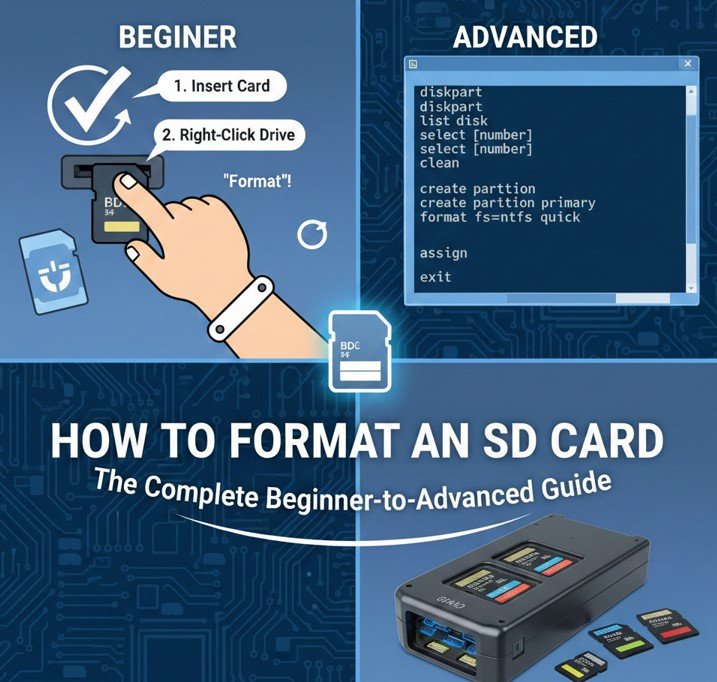
Knowing how to format an SD card is an essential digital skill in today’s device-driven world. SD cards are used in cameras, smartphones, laptops, dash cams, drones, gaming consoles, and countless other devices. Over time, SD cards can become slow, corrupted, incompatible with devices, or cluttered with unnecessary files—making formatting necessary for performance, compatibility, and reliability.
This in-depth guide is written from hands-on technical experience, data management best practices, and manufacturer recommendations. You’ll learn how to format an SD card on Mac and MacBook, how to format an SD card to FAT32, how to format an SD card for a dash cam, how to format an SD card for Nintendo Switch, and even how to format an SD card without losing data. Each section explains not only how to do it, but why it matters.
What Does Formatting an SD Card Mean?
Formatting an SD card is the process of preparing the storage device to store data by creating or recreating a file system. This removes existing file structures and organizes the card so devices can read and write data efficiently.
According to the SD Association (SDA), improper formatting is one of the leading causes of SD card errors, data corruption, and device incompatibility. Proper formatting ensures optimal performance and extends the lifespan of the card.
Why Formatting an SD Card Is Important
. Fixes File System Errors
Corrupted data tables can prevent files from opening or saving.
. Improves Device Compatibility
Different devices require specific file systems.
. Restores Full Storage Capacity
Hidden or corrupted files can consume space.
. Enhances Read and Write Performance
Clean file systems reduce lag and errors.
. Prepares Cards for New Devices
Some devices require fresh formatting.
. Protects Against Future Corruption
Correct formatting reduces long-term risk.
Also Read:- How to Become a Pharmacist: A Complete Guide
When and Why You Should Format an SD Card
Formatting should not be done randomly; it should be done with intention and understanding.
Common Reasons to Format an SD Card
. Card Is Not Recognized by Device
Formatting often resolves detection issues.
. Frequent Error Messages
“Card needs to be formatted” warnings indicate corruption.
. Slow Performance
Fragmentation and errors reduce speed.
. Switching Devices
Different devices may require different formats.
. Preparing for Critical Recording
Cameras and dash cams perform best with freshly formatted cards.
. Security and Data Removal
Formatting removes personal information.
Also Read:- How Much to Wrap a Car: Complete Cost Guide
Understanding SD Card File Systems (FAT32, exFAT, NTFS)

Before learning how to format an SD card, it’s important to understand file systems.
SD Card File System Explained
. FAT32
Compatible with most devices but limited to 4GB file size.
. exFAT
Supports large files and modern devices.
. NTFS
Primarily used by Windows; limited device compatibility.
. Device-Specific Requirements
Cameras and consoles often specify file systems.
. Operating System Preferences
macOS and Windows handle formats differently.
. Choosing the Wrong Format Causes Errors
Always match the device’s requirements.
Also Read:- How to Mix Essential Oils: A Complete Guide for Safe and Effective Blending
How to Format an SD Card on Mac (Universal Method)
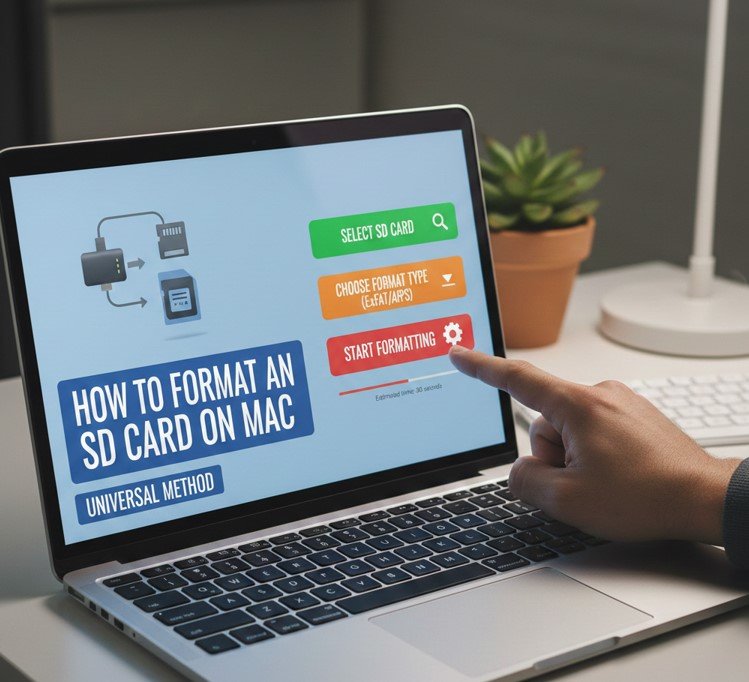
Learning how to format an SD card on Mac is straightforward using Apple’s built-in tools.
Formatting SD Card on Mac Explained
. Insert SD Card Using Reader or Slot
Ensure stable connection.
. Open Disk Utility
Located in Applications > Utilities.
. Select the SD Card (Not the Volume)
Choosing the wrong disk can erase other data.
. Click “Erase” and Choose Format
FAT32 or exFAT are most common.
. Name the Card (Optional)
Helpful for organization.
. Confirm and Wait for Completion
Do not remove card during process.
Also Read:- How to Make Fajita Seasoning: A Complete Homemade Spice Guide
How to Format an SD Card on MacBook
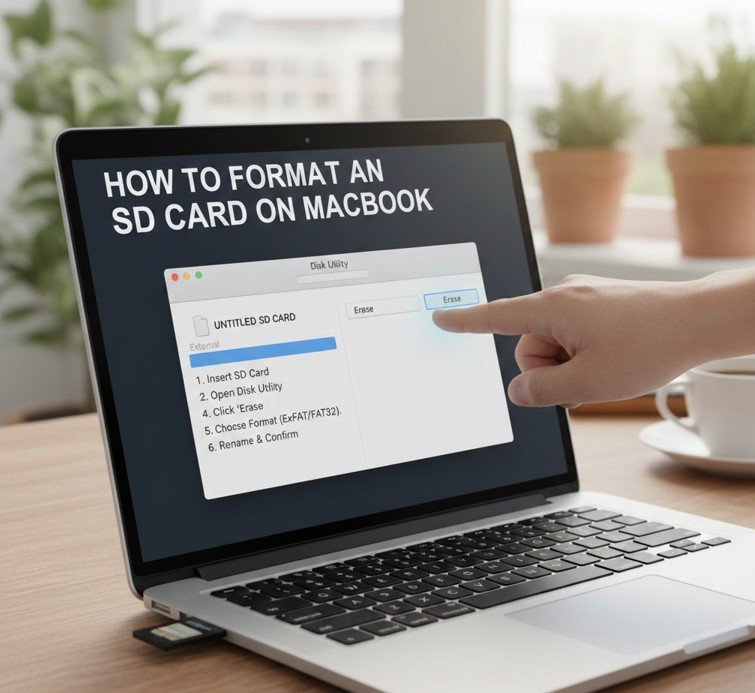
Formatting an SD card on a MacBook follows the same process but may require adapters.
MacBook-Specific Formatting Tips
. Use a High-Quality USB-C Adapter
Poor adapters cause errors.
. Ensure MacBook Has Enough Power
Avoid sleep mode during formatting.
. Close Other Applications
Reduces system interruptions.
. Use Disk Utility’s “View All Devices”
Ensures correct disk selection.
. Safely Eject After Formatting
Prevents file system damage.
. Test Card After Formatting
Confirm read/write functionality.
Also Read:- How to Eat a Pomegranate: A Complete, Practical, and Healthy Guide
How to Format an SD Card to FAT32
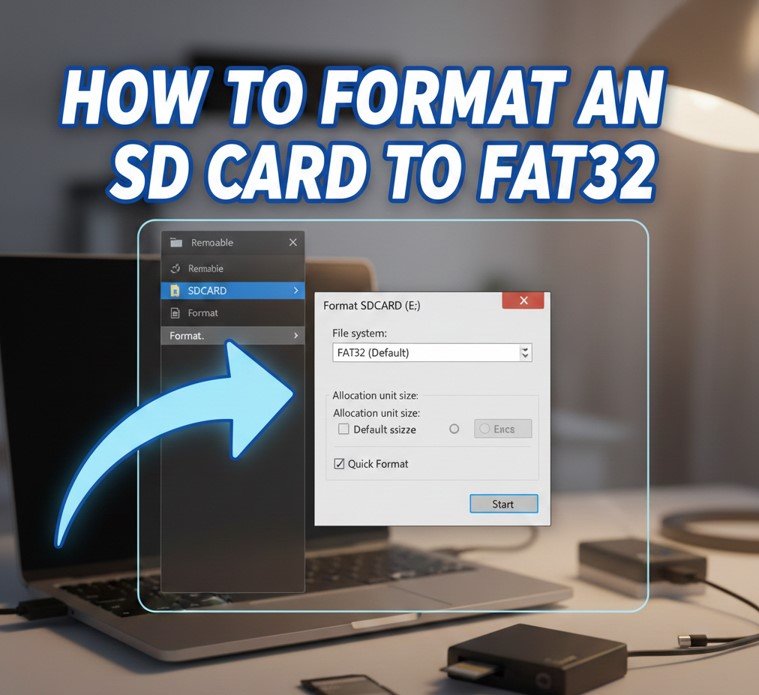
Many devices require FAT32, especially older cameras and embedded systems.
FAT32 Formatting Explained
. Understand FAT32 Limitations
Max 4GB per file.
. Choose FAT32 in Disk Utility or Formatter Tool
Some systems hide FAT32 for large cards.
. Use SD Association Formatter If Needed
Recommended for compatibility.
. Avoid Quick Removal After Formatting
Let process finish fully.
. Test with Device Immediately
Ensures compatibility.
. Reformat in Device When Possible
Some devices optimize formatting internally.
Also Read:- How to Draw a Bat: A Complete Step-by-Step Drawing Guide
How to Format an SD Card for a Dash Cam
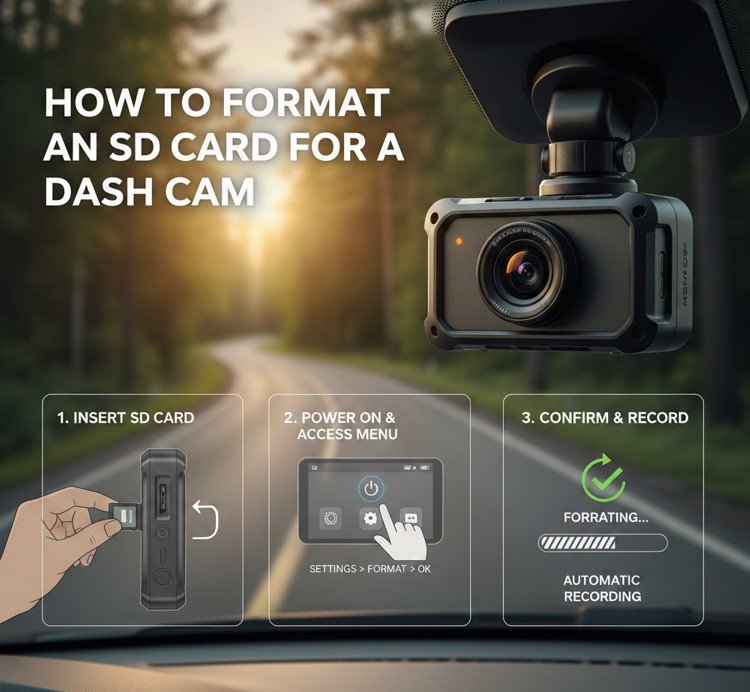
Dash cams are sensitive to SD card quality and formatting.
Dash Cam SD Card Formatting
. Use High-Endurance SD Cards Only
Dash cams write data continuously.
. Format in the Dash Cam Itself When Possible
Optimizes file structure.
. Use FAT32 or exFAT as Required
Check manufacturer instructions.
. Format Regularly (Every 1–2 Months)
Prevents corruption.
. Avoid Using Card for Other Devices
Reduces file system conflicts.
. Replace Card Annually for Heavy Use
Flash memory wears out.
Also Read:- How to Soften Brown Sugar: Complete Guide
How to Format an SD Card for Nintendo Switch
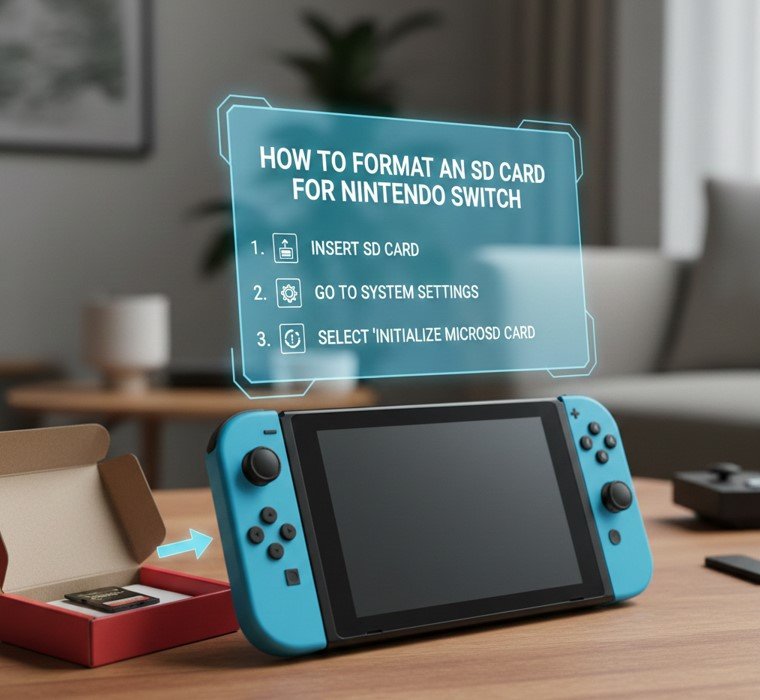
Nintendo Switch requires specific formatting for optimal performance.
Nintendo Switch Formatting Explained
. Backup Data Before Formatting
Switch formatting erases all data.
. Use exFAT or FAT32 Based on Firmware
Older firmware prefers FAT32.
. Format Directly in the Switch Console
System Settings > Initialize > Format SD Card.
. Avoid Formatting on PC Unless Necessary
Console formatting ensures compatibility.
. Reinsert Card After Formatting
System should recognize immediately.
. Download Test Content
Confirms successful formatting.
Also Read:- How to Draw Lips: The Ultimate Guide for Beginners and Artists
How to Format an SD Card Without Losing Data
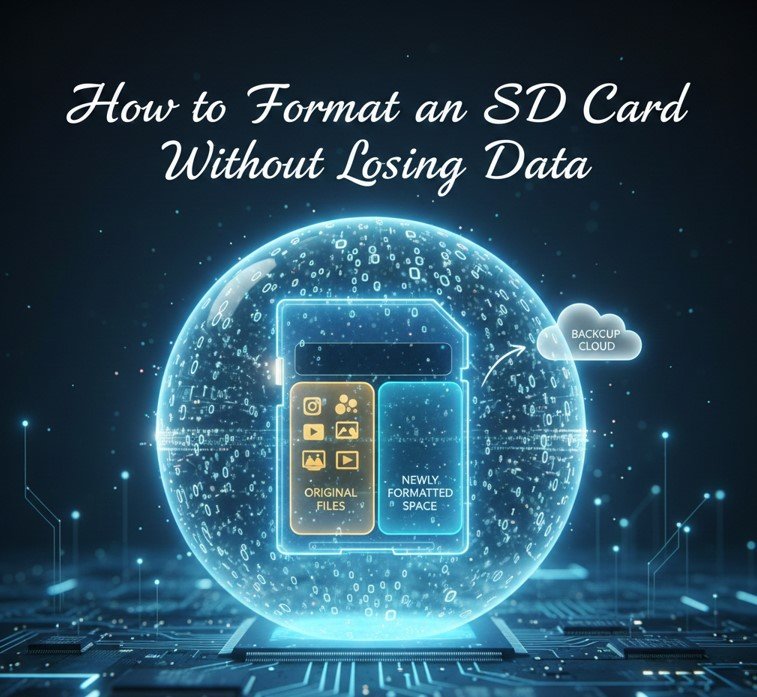
Formatting usually erases data, but precautions can protect files.
Safe Formatting Without Data Loss
. Back Up All Files First
Use computer or cloud storage.
. Use File System Repair Before Formatting
Sometimes fixes errors without erasing data.
. Clone SD Card If Needed
Advanced users can create disk images.
. Recover Data Before Formatting
Use recovery software if card is corrupted.
. Avoid Quick Formatting if Data Matters
Full format reduces recovery chances.
. Verify Backup Before Proceeding
Always double-check files.
Also Read:- How to Address an Envelope: A Complete Step-by-Step Guide for Every Situation
Common Mistakes When Formatting an SD Card
Avoiding these mistakes prevents data loss and device damage.
SD Card Formatting Mistakes
. Formatting the Wrong Drive
Always double-check disk selection.
. Removing Card During Formatting
Causes permanent corruption.
. Using Incompatible File Systems
Leads to device errors.
. Skipping Backup Steps
Results in lost data.
. Using Low-Quality Card Readers
Can interrupt formatting.
. Ignoring Device-Specific Requirements
Manufacturers know best.
Best Practices to Extend SD Card Lifespan
Formatting correctly is part of long-term care.
SD Card Maintenance Tips
. Format in the Device Regularly
Especially for cameras and dash cams.
. Avoid Filling Card to 100%
Leave free space for stability.
. Store Cards Properly
Avoid heat and moisture.
. Use Trusted Brands
Cheap cards fail more often.
. Eject Safely Every Time
Prevents corruption.
. Replace Cards Periodically
Flash memory has limited write cycles.
Conclusion
Learning how to format an SD card correctly is essential for maintaining performance, compatibility, and data integrity across devices. Whether you’re formatting an SD card on a Mac or MacBook, preparing it for a dash cam or Nintendo Switch, converting it to FAT32, or trying to avoid data loss, the right method makes all the difference.
FAQs
Does formatting an SD card delete everything?
Yes, formatting removes all data unless backed up.
Which format is best for SD cards?
FAT32 or exFAT, depending on device.
How often should I format my SD card?
Every few months for frequently used cards.
Can formatting fix a corrupted SD card?
Often yes, but data may be lost.
Visit For More Information Go To entrepreneurideas